Forget your BSB and account number with Australia’s New Payments Platform. You can now make and receive payments in real time using a PayID between participating financial institutions.
How to create your PayID
This feature is currently not available in the new ING app. You will need to use the Legacy ING App to create a new PayID.
Login to your Legacy ING App and tap More > Settings > PayID
Tap Create PayID
Select your PayID type as mobile number or email, and the account to link it to
Read and select agree to the terms and conditions, then tap Continue
Enter the Security Code verification sent to your registered mobile number (for mobile based PayID) or sent to your email (for email based PayID) – then you’re done!
Login to Online Banking using your client number (found on the back of your Orange Everyday card, a recent statement or in the ING App) and access code
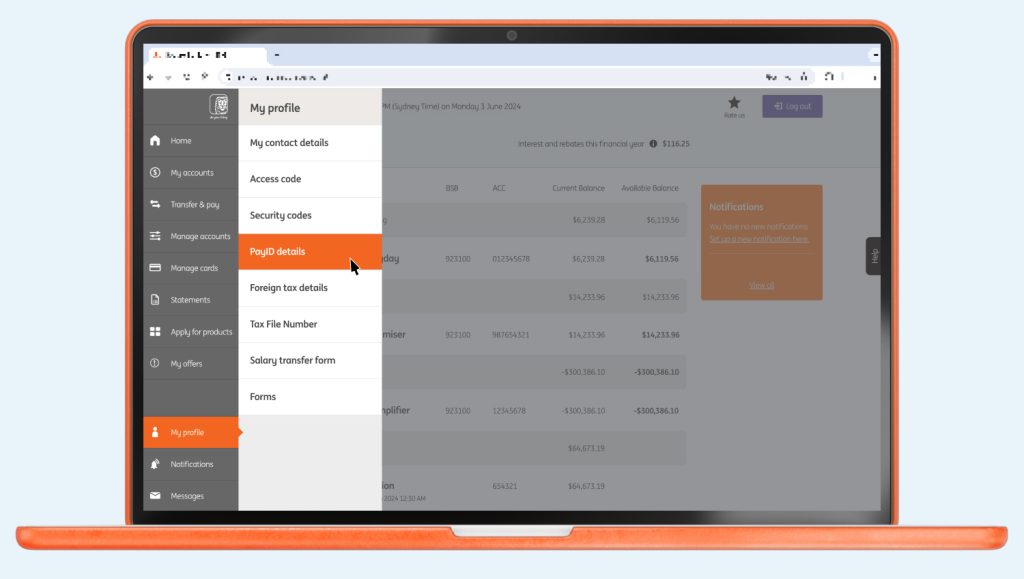
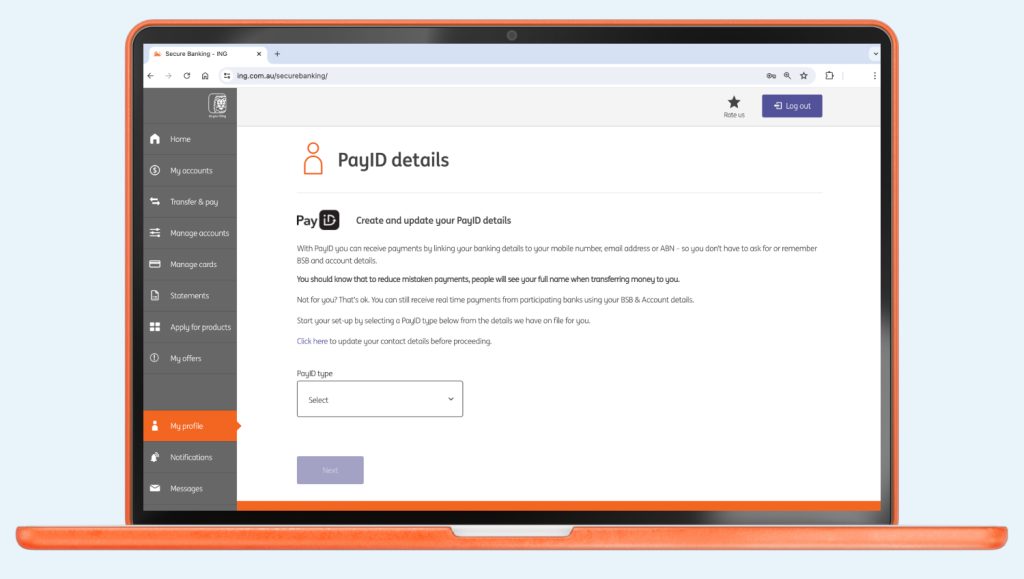
From the navigation menu, click My profile > PayID details
Select the PayID type either from your email address or mobile number – then you’re done!
Your Address Book will pop up, tap Add new and select from the PayID options
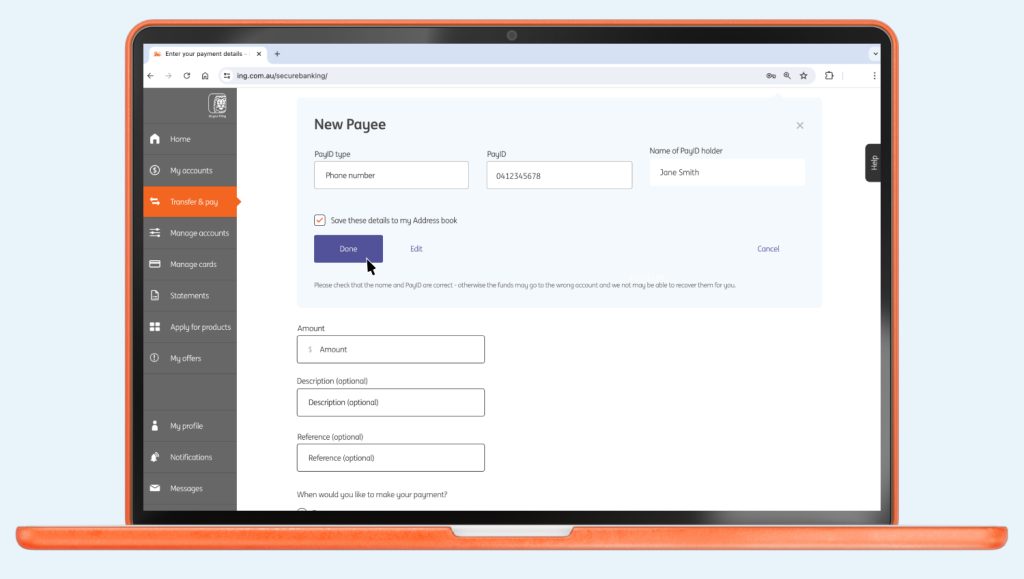
Enter the details and click Verify. The PayID details will pop up to review and tap DONE to confirm. You also have the option to save the details as well in your Address Book.
Select the account you want to pay from. Enter the Amount, Description and reference (both optional) and tap Continue.
Login to Online Banking using your client number (found on the back of your Orange Everyday card, a recent statement or in the ING App) and access code
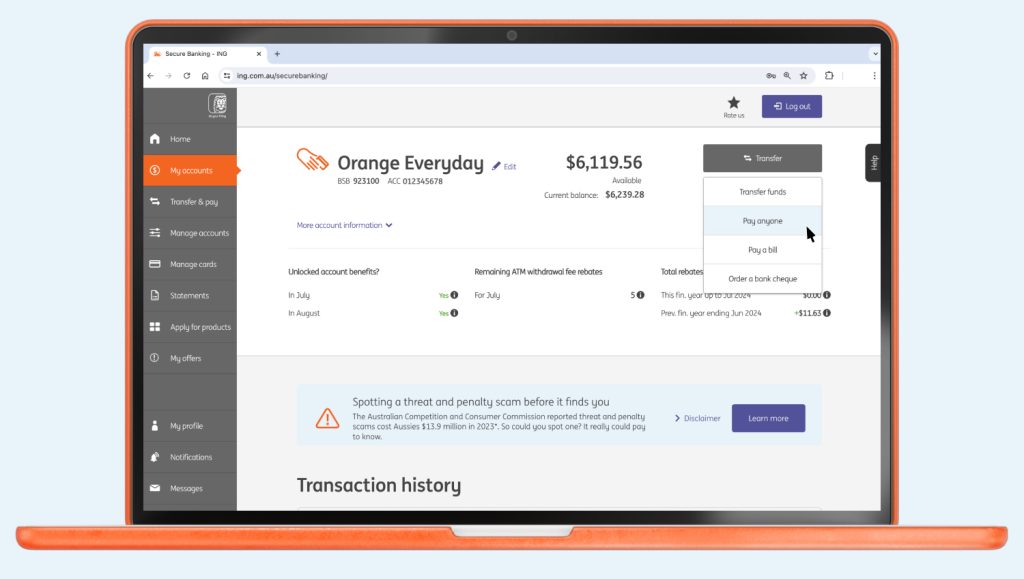
Select the account you want to pay from
Click Transfer > Pay anyone
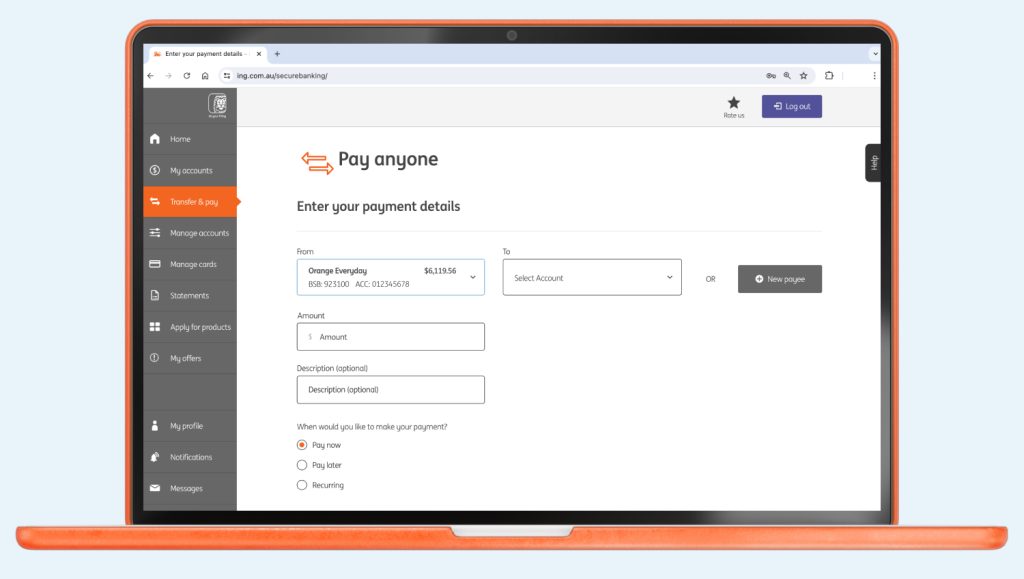
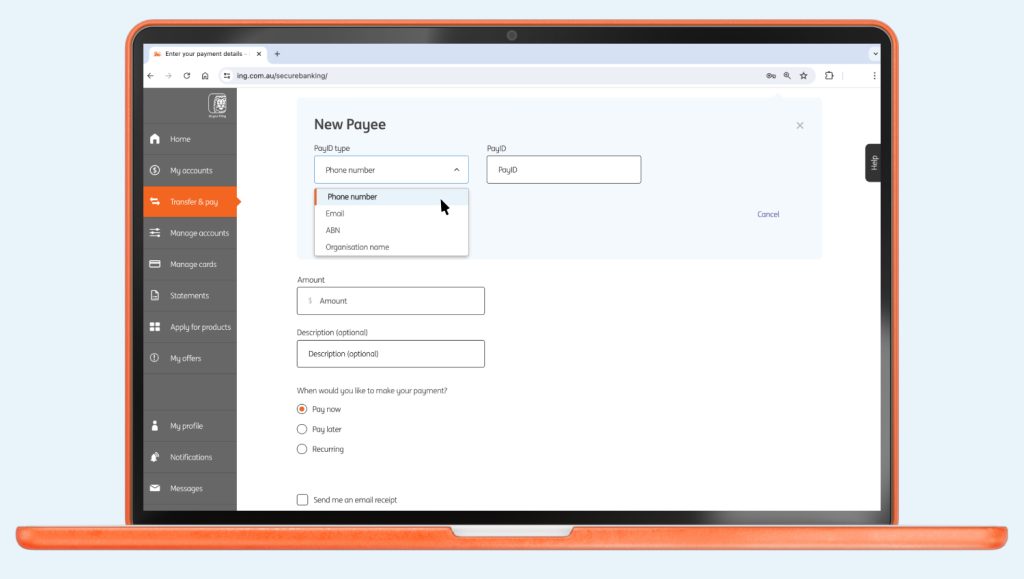
Select +New payee > PayID
Select the PayID type and enter the details and click Verify
Review the PayID details under New Payee and click Done to confirm. You also have the option to save the details as well in your Address book.
Once confirmed, the new PayID account will appear in the ‘To’ section. Proceed to follow the prompts to make your payment.
Quick tip to avoid scams
If the payee name doesn’t match who you’re trying to pay, it could be fishy. Before you pay, give them a call on a trusted number to double-check the payment details.
PayID® is a registered trademark of NPP Australia Limited.
ING customers can set up a PayID (like a mobile number or email address) on the following accounts – Orange Everyday, Savings Maximiser, Savings Accelerator, Business Optimiser, Orange Advantage and Mortgage Simplifier.