
ING Legacy App - How-to guides
How do I view my statements online?
View statements
Jump to a section
You can access your statements using your Legacy ING app or Online Banking.
Legacy ING app
- Login to your Legacy ING app
- Select the account you wish to view the statement for
- Tap MANAGE > Statements
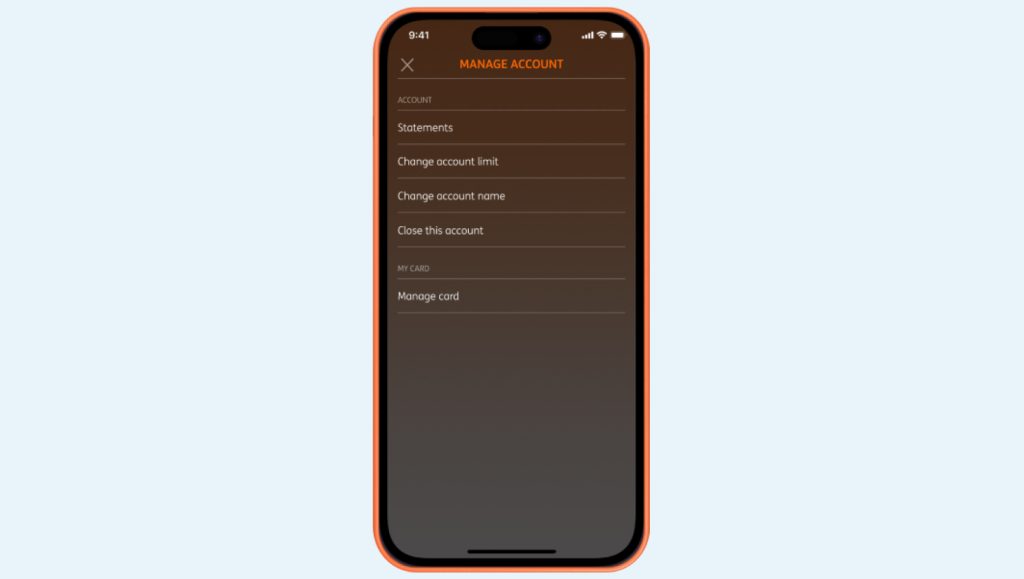
- Select period you wish to view your statement for. You can also get a statement for a date later than your last available statement by selecting Interim statement (most recent statement).
- Download your electronic statement on a PDF file and save.
Online Banking
- Login to Online Banking using your client number (found on the back of your Orange Everyday card, a recent statement or in the ING App) and access code
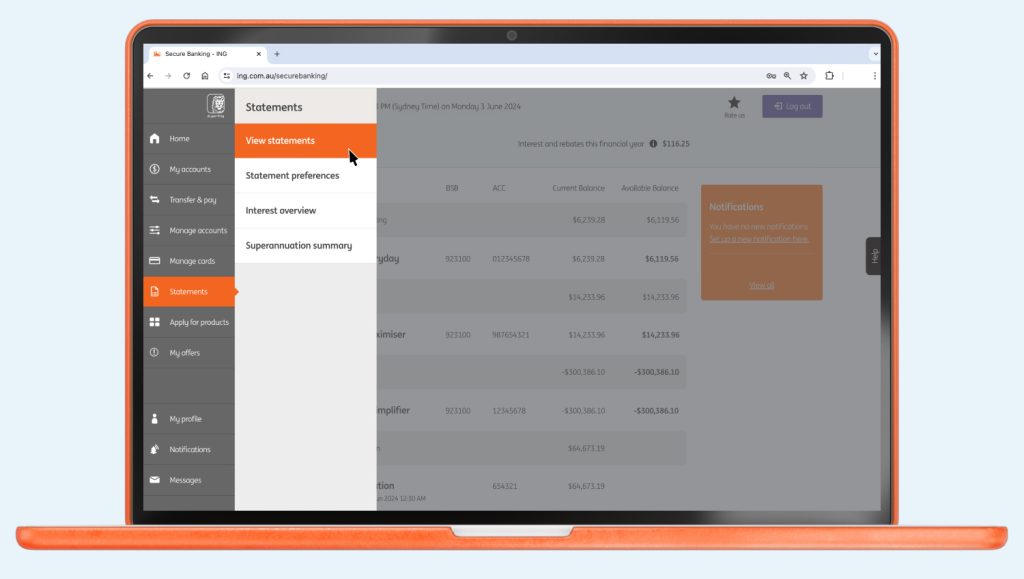
- From the navigation menu, select Statements > View statements
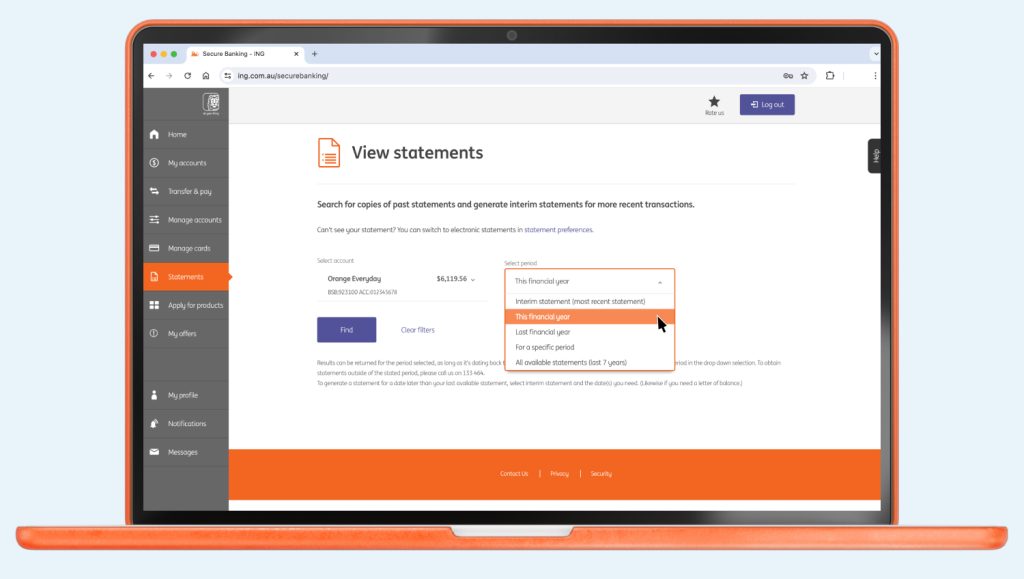
- Select account and select period from the dropdown menu. You can also get a statement for a date later than your last available statement by selecting Interim statement (most recent statement).
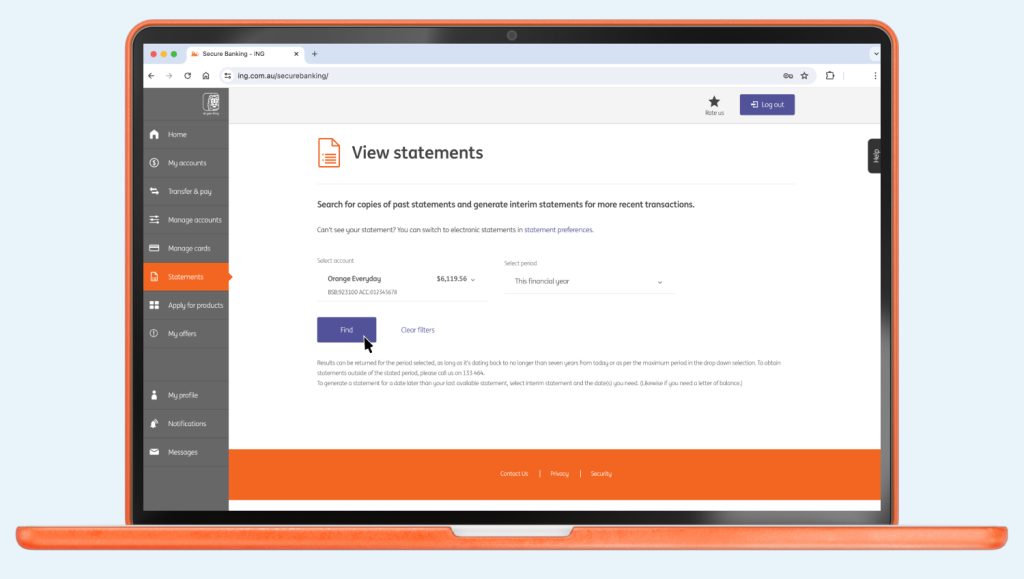
- Click Find and the statement period will be available to download your electronic statement as a PDF file
- Client on the downloaded PDF and it should open in your PDF app or web browser. If you can’t see your statement, it may have opened in a separate window.
Did you find this page helpful?
You might be interested

What happens when my ING card is expiring?
Your ING card is only valid during the period stated on the card and ...

Fixed Rate Home Loan Expiry.
How do I find out the expiry date of my Fixed Rate Home Loan? ...


How can I view or update my details?
Checking or changing your details Changing your linked bank account For Savings Maximiser, Savings ...

How do I get the additional savings rate?
If you want to fast track your savings so you can get to ...