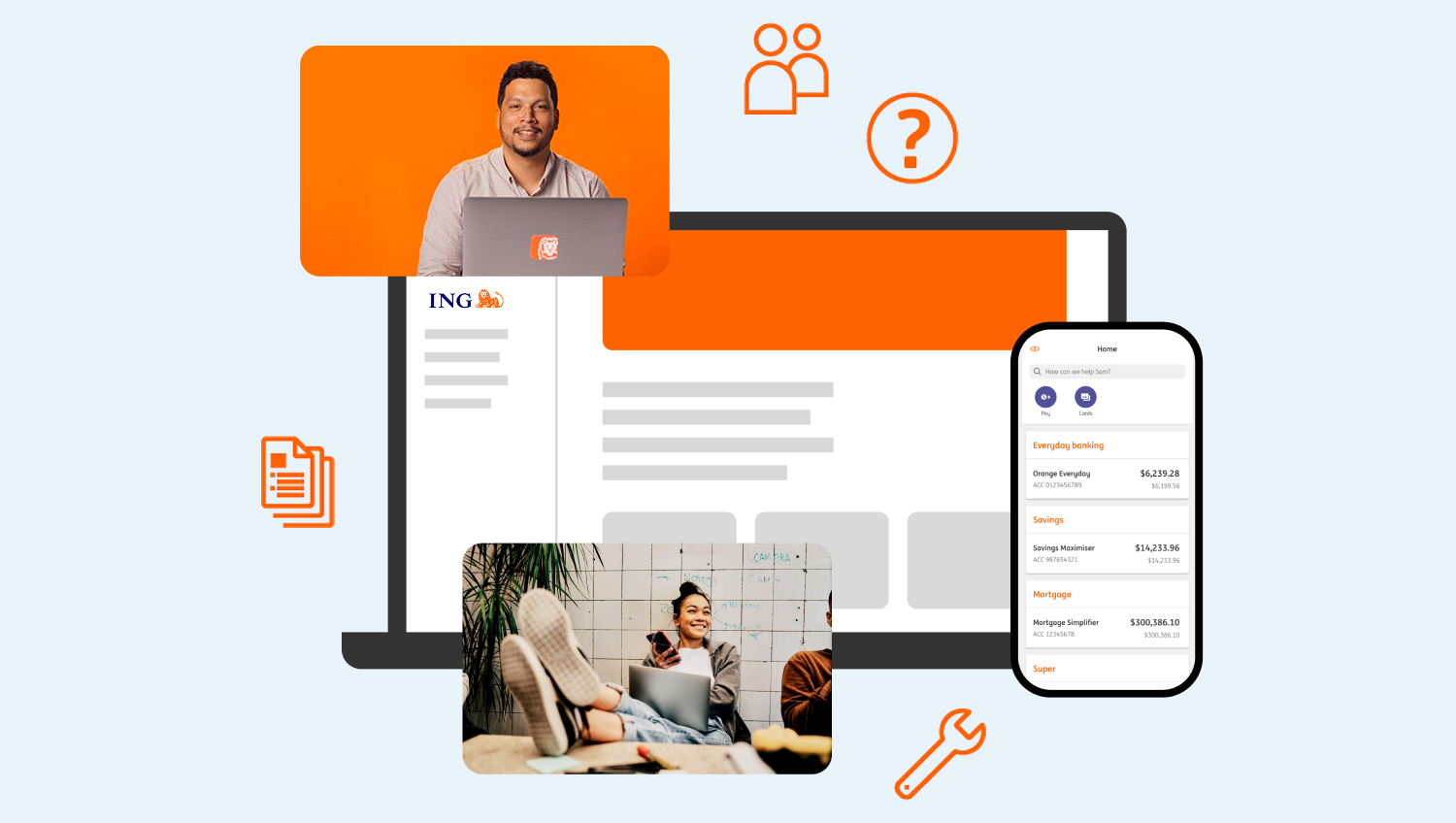

A fresh new way to bank.
Say hello to the new ING app
Right now, the app supports most features of Orange Everyday, Savings Booster, Savings Maximiser and Savings Accelerator accounts. If you have additional ING products to these, you can continue to manage them through online banking on your mobile. We’ll keep you in the loop as we roll out more products and features.



Additional security features
Instant notifications, a newly added mobile pin, and even more security features on the way.

Easier navigation
Find what you need faster with transaction filtering and an improved search bar, all packaged in a sleek new look.

Did you come from our legacy app?
Your login details, account numbers, recurring payments, saved payees and address book will all carry over – so your banking continues smoothly. (Just a heads-up: your old account nicknames won’t come across, but it’s quick and easy to set them up again.)
How to get started
Simply download the ING app named ‘Do your thing’ from your device app store and follow the prompts to set up. Always check that the official app developer name is ‘ING Australia’.
What you’ll need


Your Apple app store or Play Store log in details

Just so you know
The new ING app is built to support your everyday banking — and it’s ready to roll with new features like Chat and transactions push notifications. We’re actively working on a few improvements and regular updates are on the way to keep things running smoothly. Keep an eye out for new and exciting features, soon to be in your pocket.
What’s different in the new app
- Introducing push notifications! Currently these are available for transactions only. You can manage your push notifications preferences by following the instructions here.
- Chat with ING! – My Messages has been great, but instant messages are even better.
- Quick view balance will not be available in the new app, however you can set up biometric login to quickly and easily access your account.
- Running balance will not be available in the new app, however you may check your running balance through the interim statements feature.
- If you’re coming from our legacy app, nicknames of your accounts don’t sync when you register for the new app. You’ll need to rename your accounts once you get started following the instructions here.
- The new ING app does not support multi profile functionality, meaning users can only login to and view one customer profile per device.
Product and features coming soon
Right now, the new app supports most features of Orange Everyday, Savings Booster, Savings Maximiser and Savings Accelerator accounts.
If you are already using our new app, and you have applied for or now hold a different product to those listed above, you can still manage all of your products via online banking.
- Complete Orange One accounts and management
- Complete Home Loan accounts and management
- Insurance accounts and management
- Super accounts and management
- Inbox
- PayTo payment option
- ‘Look Who’s Charging’ transaction identification
Known issues we’re working on
- Customers are unable to make BPAY payments when there are special characters in the biller name. You can still use online banking to make any payments.
- Some customers using iOS devices are seeing an error on the scheduled payment screen.Some customers who already have their card added to Apple Wallet may see their card showing as inactive under More > Settings > Apple Pay in the new app. Are you seeing this? Your card can still be used as normal, with no impact to payments. If you would like the card to show as active, please remove and re-add it to Apple Wallet.
Your questions answered
I am getting an error message when I try to log in. What should I do?
If you are having trouble logging in, please try the following steps:
- Ensure your login details are correct.
- Try deleting and reinstalling the app.
- If the problem persists and the action is urgent, you can access your account through online banking.
I can’t do something in the new app. Where can I get help?
For quick answers take a look at our how-to guides. You can search FAQs within the app too from the search bar on the dashboard. Or tap ‘More’ and search under ‘Let’s help you find it’.
Why can’t I see all my accounts?
Currently, the new ING app is ready for use for our Orange Everyday, Savings Booster, Savings Maximiser and Savings Accelerator customers – with the exception of a few functionalities (see them here). Personal Loans and Term Deposits accounts are visible, but you will not be able to interact with them.
For viewing your other accounts, please log into Online Banking or the Legacy ING app.
Will there be changes to online banking as well?
No, there will be no changes to online banking.
I renamed my account in the new app but it is not reflected in the current app or online banking.
Don’t worry – this doesn’t affect the money in your account in any way. As the new app is built on different technology, there is no integration between account names on the Legacy ING app and the new ING app. You’ll need to update the account names in both apps if you wish to do this.
Can I still access the legacy ING app?
Yes, you can still access the Legacy ING app for now. We encourage you to familiarise yourself with the new ING app so that your mobile banking experience is not affected.
How do I provide feedback on the new app?
We’d love to hear from you – just head to the feedback section in the app under ‘More’ from the dashboard.
To raise a formal complaint:
Click here for all of the information you need.
Click here to see ING’s Complaints Policy.
Why do I need a 5-digit mobile pin?
We are introducing a 5-digit PIN to the new ING app to help keep your account even more secure. It is specifically 5 digits to avoid common numbers like postcode or date of birth.
It’s a small change that adds a layer of protection – helping to keep your banking safe.
Is the 5-digit mobile pin the same as the access code?
No, the 5-digit mobile PIN is different from the access code. The ING app requires you to set up a 5-digit PIN during registration, which is specific to each device. The access code is still required to log in to online banking and serves as an additional security feature of the new app if you forget your mobile PIN.
How do I change my 5-digit mobile PIN?
You can update your mobile PIN by:
- Logging into your new ING app
- Tap More > Settings
- Select Change my app code and follow the on-screen instructions
Forgotten your 5-digit mobile PIN? You will need to uninstall and reinstall your mobile app and then complete the registration journey again to set up a new 5-digit mobile PIN.
How do I change the mobile number associated with my account?
If you need to update your mobile number call us on 133 464. If you are overseas, please call +61 2 7242 1974 (call costs apply). Alternatively, visit our Contact Us page to view our free call numbers available from selected countries.
Which devices and operating systems are supported?
To use the new mobile app, your device must be either iOS or Android.
For iOS, your iPhone needs to have iOS 16 or above (check your operating system details in ‘Settings’).
For Android, any device running Android 11 or above is supported (check your operating system details in ‘Settings’ > About Phone > Software Information).
Will payee address book changes or payments made in the new app be reflected in the legacy ING app and vice versa?
Yes, saved payees and payment history stay in sync across both apps, so you can switch between them without missing a beat.
Why can I no longer send a message?
The new ING app does not have the My Message functionality but you can chat with our Contact Centre via Chat. You can access it:
- Logging into your new ING app
- Tapping More > Chat
We’re also working on something even better to receive important messages from ING via Inbox – stay tuned!
You can always visit our Contact Us page for alternative ways to contact us.
I am having trouble receiving my security code. What can I do?
Ensure you have an up-to-date Australian mobile phone number on file with ING. If you need to update your mobile number call us on 133 464. If you are overseas, please call +61 2 7242 1974 (call costs apply). Alternatively, visit our Contact Us page to view our free call numbers available from selected countries.
You’ll need to be registered to receive ING SMS security codes (most customers will have this enabled. If you don’t you can do this in secure banking > ‘My profile’ > ‘Security codes’).