Orange Everyday
Mobile wallet & digital card details
Update your card in your mobile wallet
Keep your Orange Everyday handy by adding it to your digital wallet. It’s secure, easy to set up and keeps your money with you, wherever you are.
In some cases, your digital wallet will be automatically updated with your new card details (if you had this set up with your old card). However, these automatic updates won’t happen where, for example:
- a new card was issued due to fraudulent or suspicious activity on your old card,
- you’ve opted out of the automatic update service, or
- there are technical issues.
So we recommend you verify the new card details in your mobile wallet. If you haven’t already set up mobile wallet, here’s how:
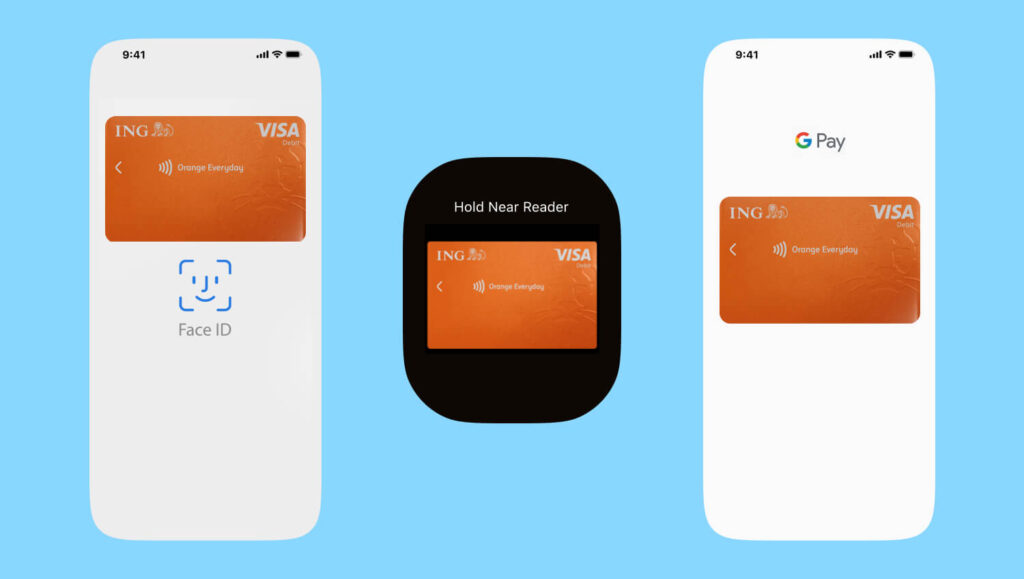
For Apple Pay
Remove card from Apple Pay using the Wallet app:
- In the Wallet app, tap the card that you want to remove.
- Tap the More button
 , then tap Card Details
  .
. - Scroll down and tap Remove This Card.
Add new card to Apple Pay using the Wallet app:
- Open the Wallet app
- Tap the + button and follow the prompts
You can also add a new card to Apple Pay via the ING app:
- Login to your ING app and tap More > Settings > Apple Pay
- Select the card you wish to add to the wallet and / or watch
- Select Show in Apple Wallet and follow the prompts
Note: if your card has already been added to the wallet, you will not see the option to proceed.
For Apple Watch
Remove old card from your Apple Watch:
- On your Apple Watch, tap the Wallet app.
- Tap the card that you want to remove.
- Scroll down and tap Remove.
Add new card to Apple Watch:
- On your paired iPhone, open the Apple Watch app.
- Tap Wallet & Apple Pay
- Tap Add Card
- Tap Add Credit or Debit Card and follow the prompts
For Google Pay
Remove old card from Google Pay:
- Open the Google Wallet app.
- Find the card that you want to remove.
- Tap the card.
- At the top right, tap More
 and
and  Remove payment method.
Add new card to Google Pay:
- Login to your ING app and tap More > Settings > Google Pay
- Select the card you wish to add to the wallet and / or watch
- Select Next and follow the prompts
Note: If your card has already been added to the wallet, you will not see the option to proceed.
Digital card details
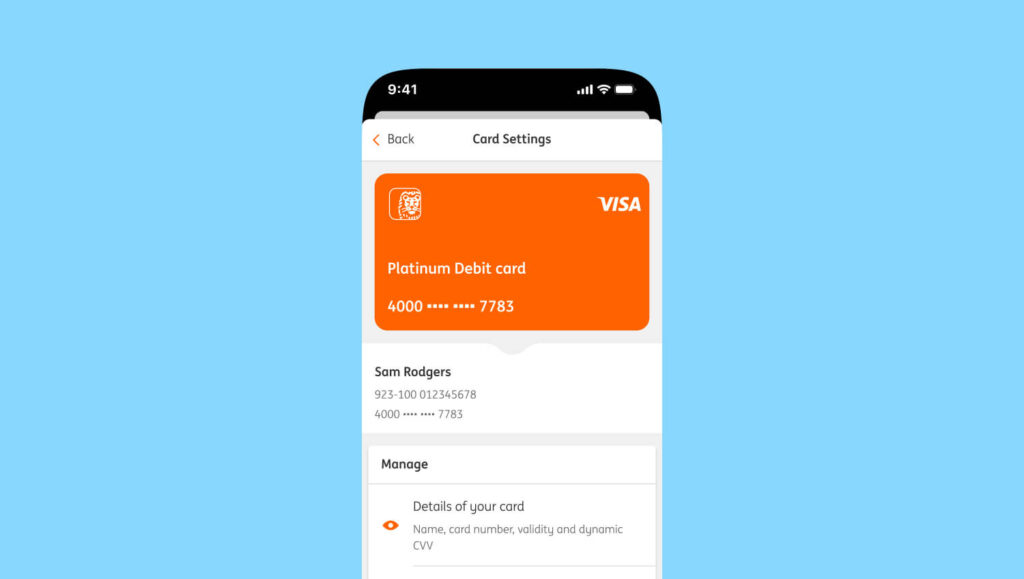
To access the digital version of your card details in the ING app, simply follow the below steps
- Login to your ING app
- Tap on Cards
- Tap on the card you would like to view
- Tap on Details of your card
 Activate your card
  PIN set up
  Staying secure
  Update payment details
  Set up PayID
  Set up your mobile wallet
 Everyday benefits
  Tips and Tricks
  Frequently Asked Questions