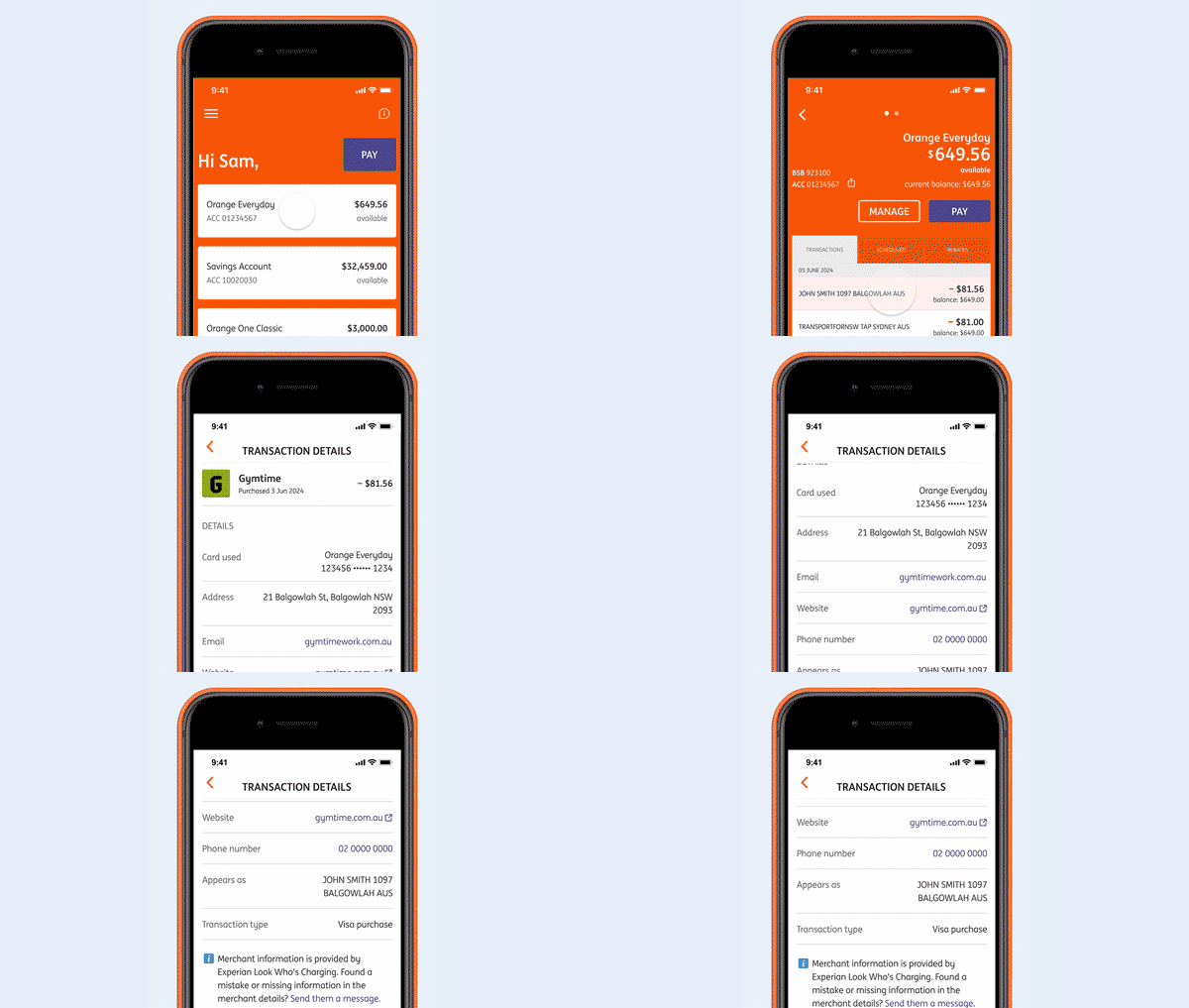
Digital card details.
What are digital card details? In the ING App you can find your digital ...

Jump to a section
Once you have accepted the terms and conditions, you will be asked for your client number.
Your unique client number is a simple way of identifying yourself with ING.
You can easily find your client number from the following:
 > My profile
Your Access Code is the 4-digit code that you use to log in to ING and is a security measure to verify your identity and access your account. Don’t remember it anymore? No worries, reset it on the Legacy ING App or through Online Banking.
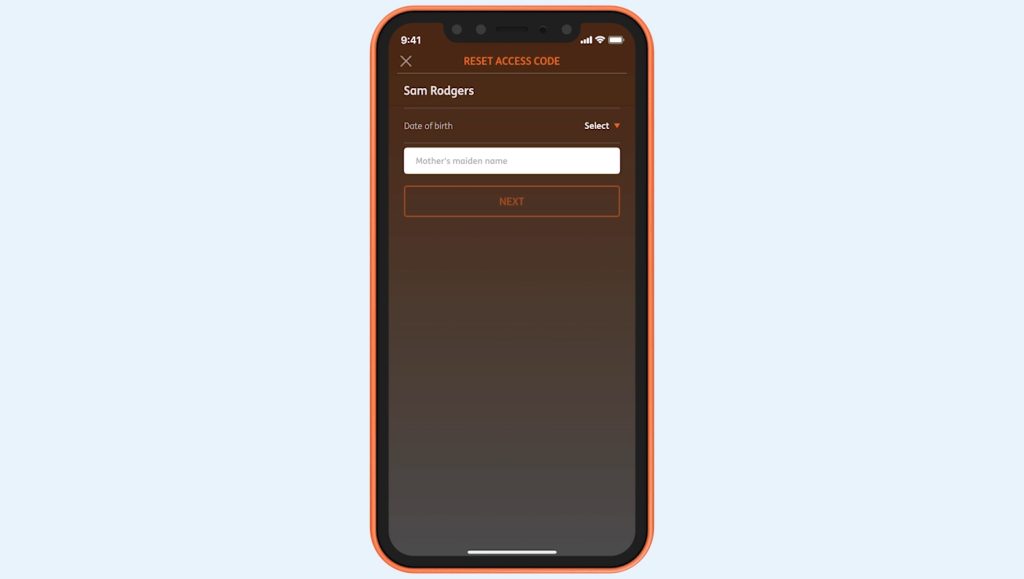
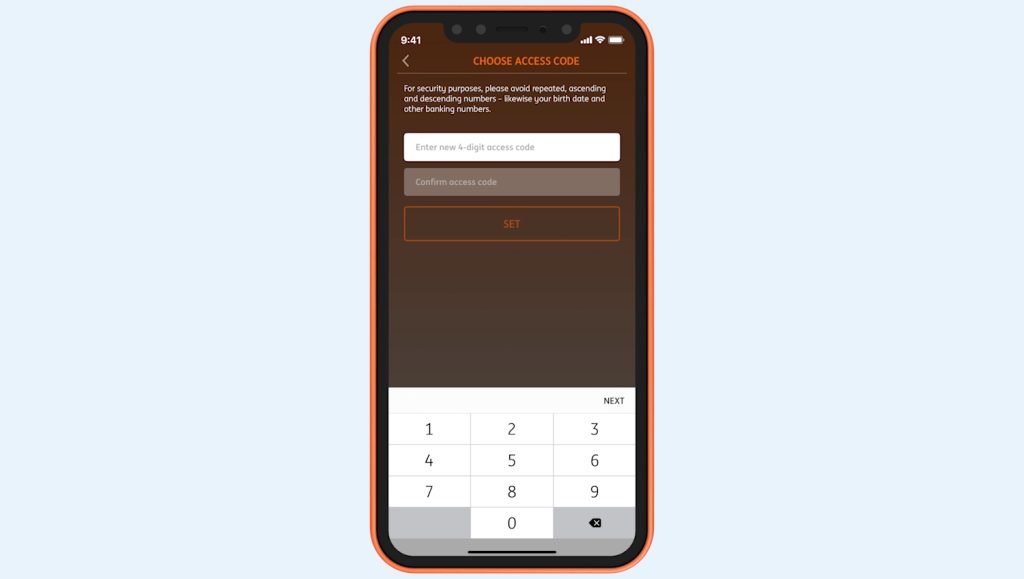
How you reset your access code using online banking depends on if you’ve registered to receive SMS security codes.
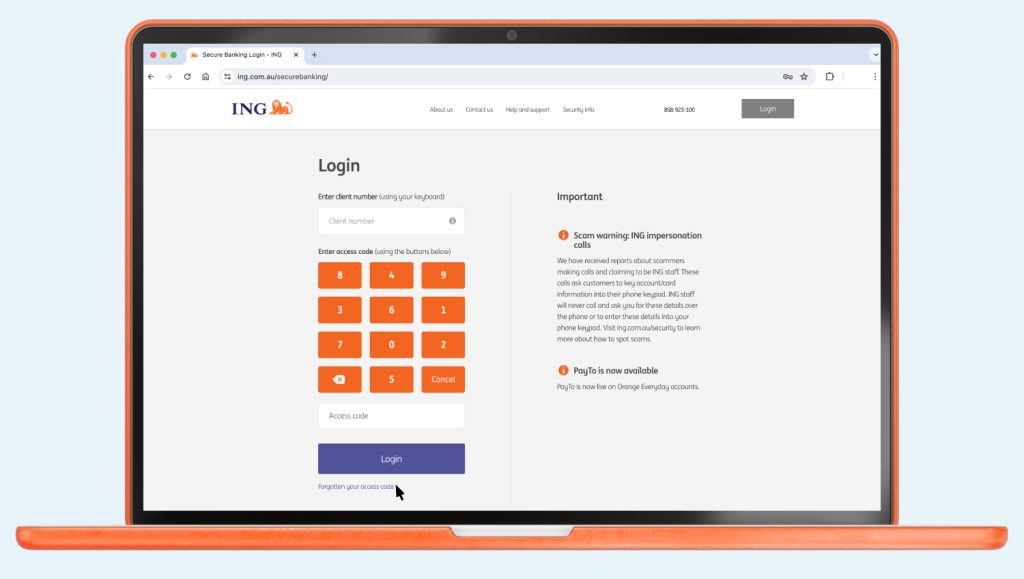
If you’ve tried 3 times and been locked out, call us on 133 464 so we can reset it for you.
You can reset your access code using the ING App or Online Banking.

Your current 4 digit Access Code will remain essential to access online banking, customer service and to reset the app if you forget the Mobile Pin (see step 3).
The new Mobile Pin is attached to the device you are choosing it on. Once set up, you will always need this Mobile Pin to access the app. Alternatively, if you activate biometric recognition, you will no longer have to enter it and you will be able to access with a glance or a finger.

The new 5 digit Mobile Pin is designed to be different to your Access Code and gives you an extra level of security for your new ING app. It is specifically 5 digits to avoid customers using common numbers like postcode or date of birth.
For security reasons, we’ll send you an SMS security code to your registered mobile number so that you can finalise your set up. You can check that your mobile number is up-to-date and valid in My profile on the legacy ING App or in online banking. If you need to update your mobile number call us on 133 464. Alternatively, visit our Contact Us page to view our free call numbers available from selected countries. You may not be able to receive SMS security codes if travelling internationally and using a travel SIM where the phone number is different.

Check that you are registered for SMS security codes by visiting the My profile tab on online banking.
You are ready to start using the new ING app. Stay tuned and be the first to use new features the moment they are released!
In the meantime, you can still use the legacy ING app or online banking to get it done. We’re working hard to bring everything together in one place soon!
What if you forget it? Click here.
Or with biometrics if you have activated it.
What are digital card details? In the ING App you can find your digital ...

In most situations, accounts can be closed quickly using online banking or with the ING app.

If you dispute a transaction on your Orange Everyday or Orange One, here's how to go about getting a quick resolution.

Identify card transactions with ease Ever looked at your transactions and seen a charge ...

You can change it up or down - fast - either on the go using the ING app or from your desktop with online banking.

Ever looked at your transactions and seen a charge you don’t recognise? Often that’s
because payment has been processed under a merchant’s registered business name
(like ABC Pty Ltd) rather than the trading name you might know (like Brand XYZ).
But now all is revealed via the ING app or online banking.
With more transaction details than ever before, we give you more control by making sense of that charge in your account you were unsure about. So before disputing a transaction, it could pay to check the details first so you don’t waste time and effort unnecessarily.
Depending on the merchant, our transaction records may include any of the following info:
Card transactions include credit, debit or international transactions whether it’s pending or a settled transaction.
The merchant information is provided by Look Who’s Charging. ING does not guarantee the accuracy or completeness of this information. If you find any mistakes or missing details, please send them a message.

Payment Limit Debit Card Purchase Limit (Including Apple Pay) $50,000 per day per account ...

1. Set it up ING Everyday Round Up requires an Orange Everyday account for ...

It's not only easy to set up a scheduled payment from your ING account, it's just as easy to cancel it too.

Orange Everyday Apple Pay ING App You can also add your card from the ...

Change repayment amount How often can I make repayments? Repayment type Frequency Principal and ...

Keen to understand a little more about our policy? Head here. It will ...

Jump to a section
In the ING App you can find your digital card details for your Orange Everyday or Orange One. Your digital card details include the following info:
You can use your digital card details the same way you’d use the card details printed on your physical card to shop online, pay over the phone, pay bills, or set up recurring payments like subscriptions.
A dynamic CVV is a digital version of the CVV that’s on the back of your physical card. Unlike the CVV on the back of your physical card which is static, the dynamic CVV regenerates every 6 hours in the ING app. Once a dynamic CVV has expired it cannot be used again to make purchases in conjunction with your ING card details.
Your dynamic CVV should not be used for any transactions where the payment is not processed immediately when your card details and CVV are submitted. This is because the dynamic CVV is only valid for 6 hours from when it is first generated, and may have expired by the time the transaction is processed.
An example of delayed processing may be providing payment details on a physical booking form or a mail order form, which may be processed by the merchant at a later time – likely after the dynamic CVV has expired.
The digital card details of your Orange Everyday or Orange One card can be viewed in the ING App without needing to refer to your physical card. To access your digital card details in the ING App, simply navigate there following one of these ways below:
Alternatively, you can find them by navigating from your account page.
From your account:
Your digital card details can be used straight from the ING app and entered just how you usually enter your card details to shop online, pay over the phone, pay bills, or set up recurring payments like subscriptions.
Your dynamic CVV should not be used for any transactions where the payment is not processed immediately when your card details and CVV are submitted. This is because the dynamic CVV is only valid for 6 hours from when it is first generated, and may have expired by the time the transaction is processed.
An example of delayed processing may be providing payment details on a physical booking form or a mail order form, which will be processed by the merchant at a later time – likely after the dynamic CVV has expired.
You can use your digital card details (with your dynamic CVV) to set up subscriptions or recurring payments. Your dynamic CVV is only used at the time of setting up a recurring payment arrangement. It is not required to process any subsequent payments after initial setup. If a payment is declined at a later stage it could be due to various other reasons, such as insufficient funds or card expiry.

If you havent been locked out, you can reset your access code using the ING app or online banking.

If any of your details change, you can easily update them online.
Keen to understand a little more about our policy? Head here. It will ...
Payment Limit Debit Card Purchase Limit (Including Apple Pay) $50,000 per day per account ...

You can access your statements using your ING App or Online Banking.

Downloading the new ING App iOS Instructions Android Instructions 1. Client number Once you ...

Jump to a section
Notifications help you stay across activity on your accounts. You can choose to set up and receive notifications by SMS or email for certain activity. Others, like important security notices, are automatically posted online and emailed to you.

When your balance first moves above or below a specified amount.

When a withdrawal occurs above a specified amount.

When a deposit is above a specified amount.

When salary is deposited.

When a payment has not been processed.
You can change it up or down - fast - either on the go using the ING app or from your desktop with online banking.
Orange Everyday Apple Pay ING App You can also add your card from the ...

Easy. And fast! Some organisations will let you to do this online, over the phone or by completing a form.

No signature required There’s no need to sign your new Orange Everyday card. Which ...
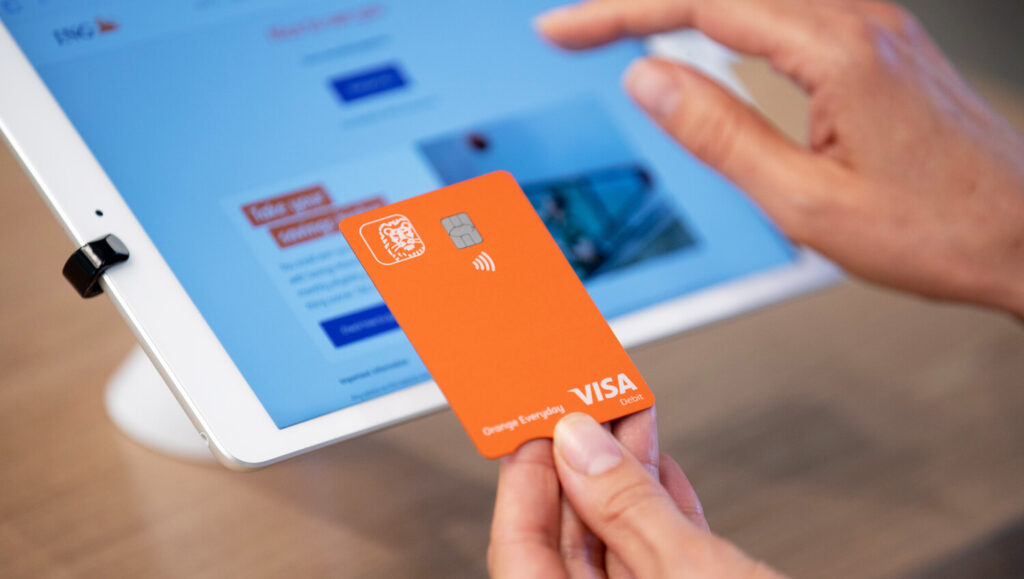
Your ING card is only valid during the period stated on the card and ...
If any of your details change, you can easily update them online.

Jump to a section
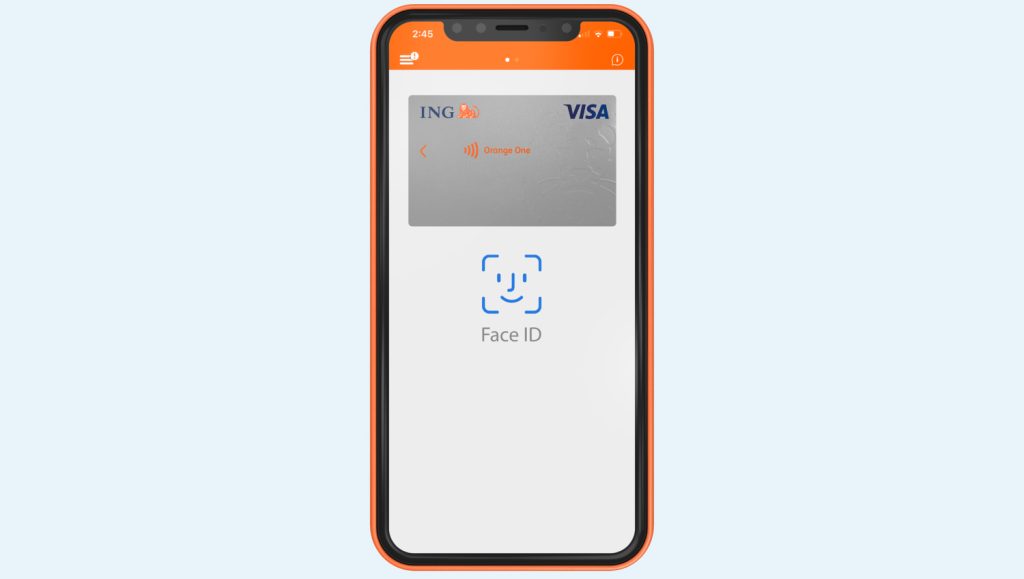
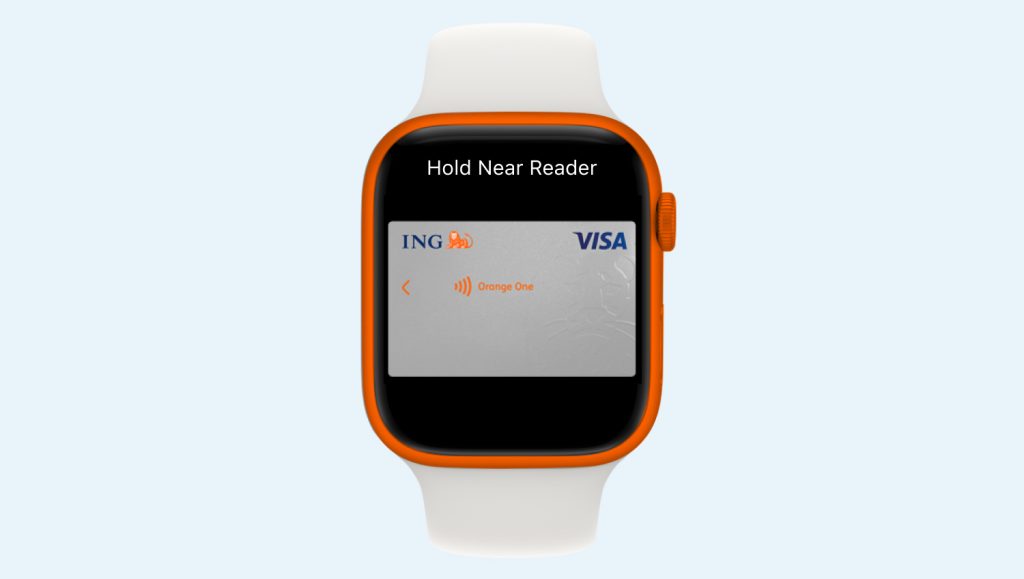
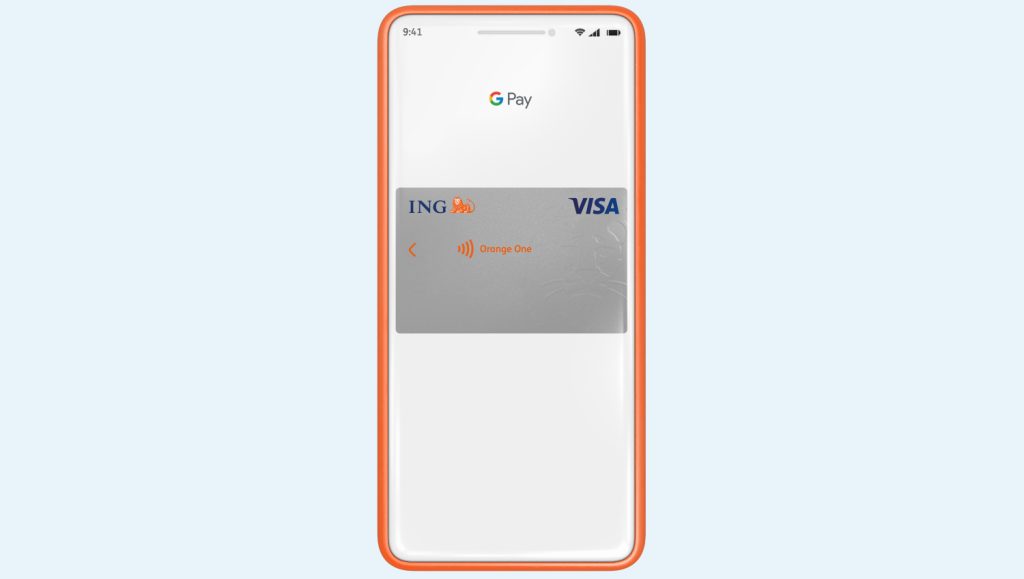
You can also add your card from the Wallet App 
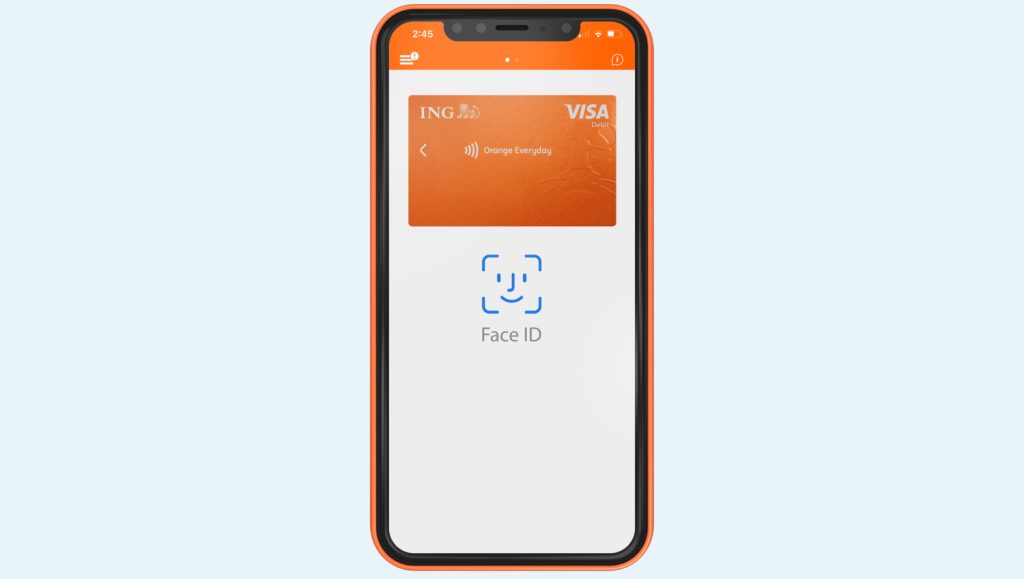
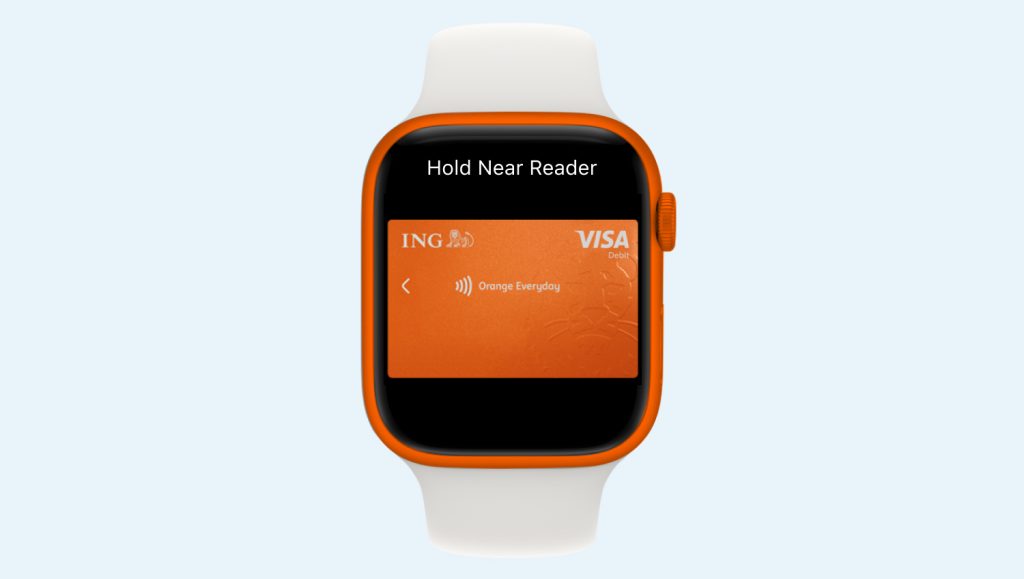
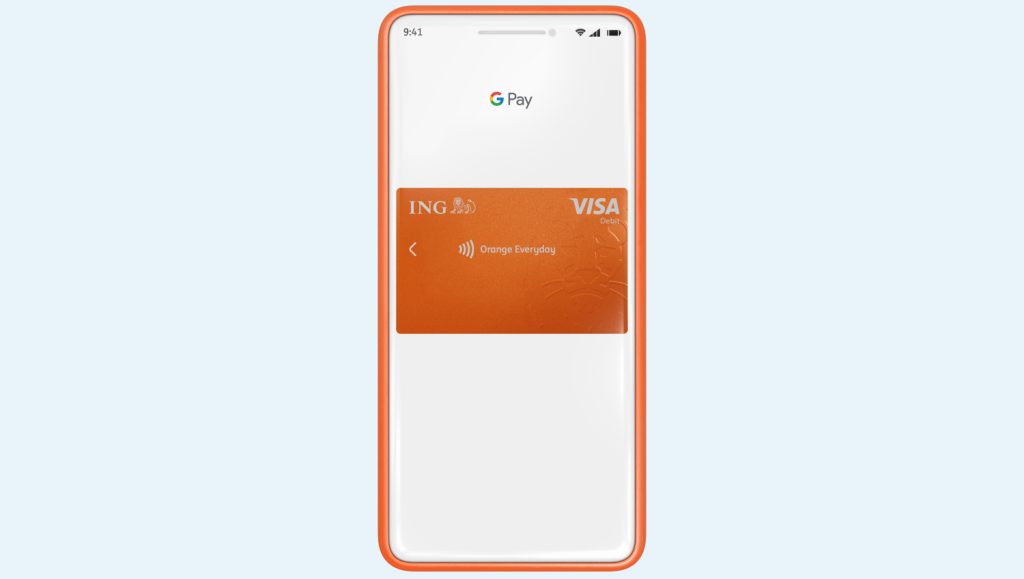
You can also add your card from the Wallet App
If you havent been locked out, you can reset your access code using the ING app or online banking.
No signature required There’s no need to sign your new Orange Everyday card. Which ...

Transferring money between your ING accounts Transferring money from ING to another financial institution ...

How long the money will take to reach its destination depends on the type ...

You could fast track your savings goals sooner, with Savings Maximiser's highest available variable rate.
1. Set it up ING Everyday Round Up requires an Orange Everyday account for ...
BPAY® helps you pay your bills easily and securely on your ING App or in Online Banking.
 icon to add a new biller
Pro Tip: If it’s a regular ongoing bill you can choose recurring when making the payment and put your BPAY payments on autopilot. Just tap When? and select Recurring payment. Select the Payment frequency, Start date and Payment schedule and then tap Pay.
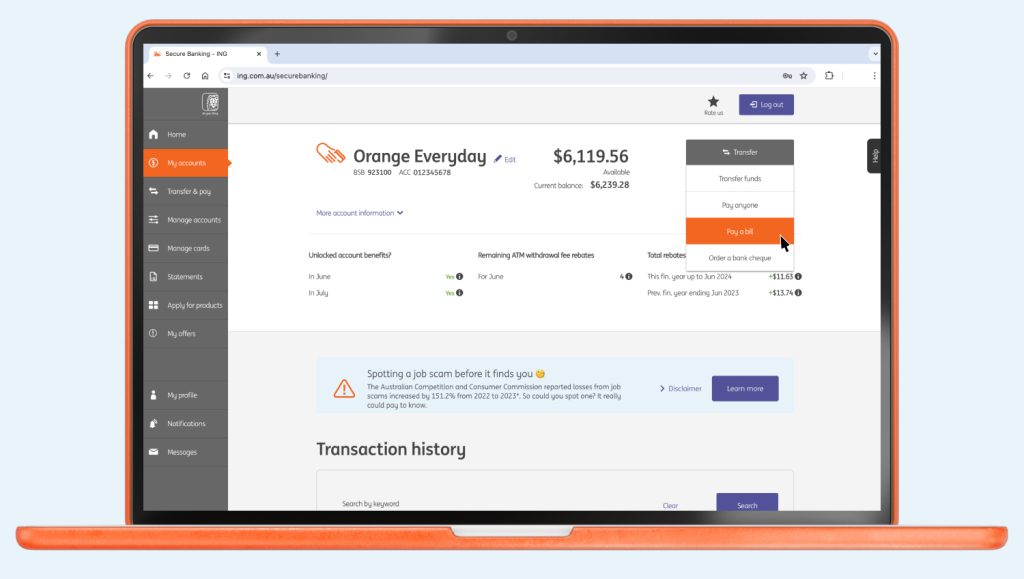
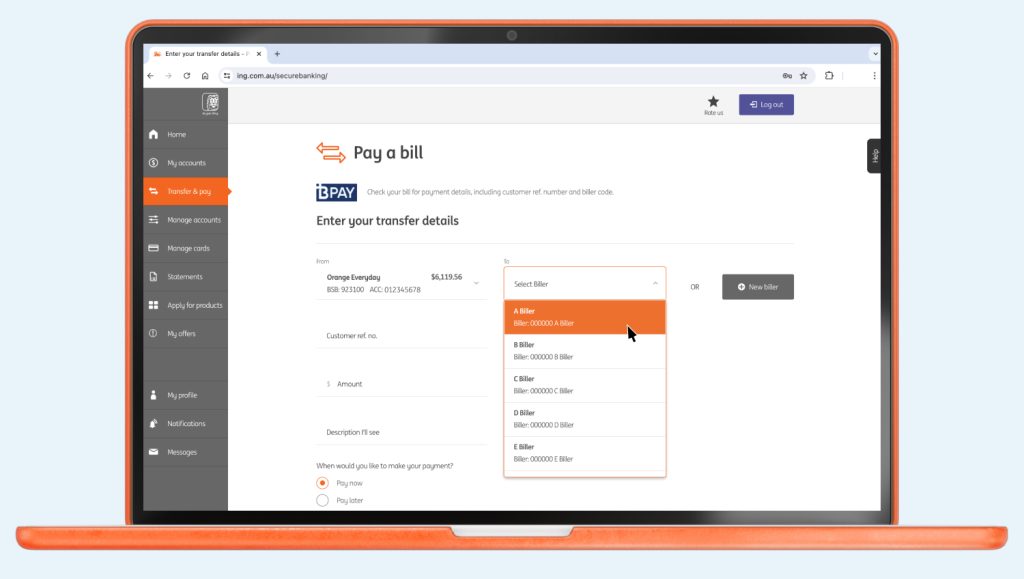
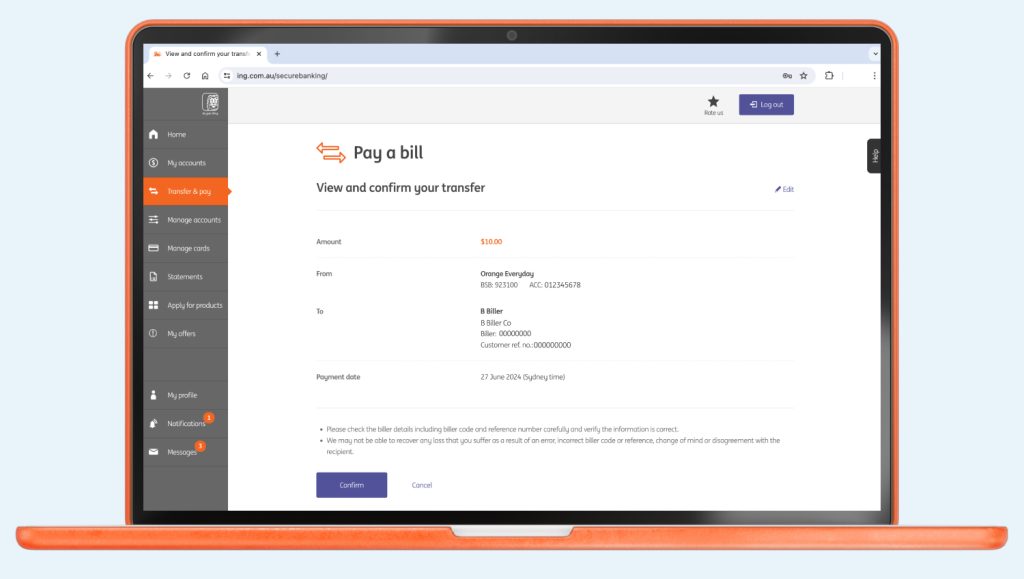
Get 1% cashback on eligible gas, electricity and water bill payments made from your Orange Everyday account using BPAY (T&Cs apply).
Click the link below to see if your household gas, water and electricity suppliers are included. We have most Australian utility suppliers covered.
You must make the BPAY transaction before 4pm (AEST/AEDT) on a business day for BPAY to receive the funds from ING the very same day.
BPAY will then forward the funds to the Biller which may take 2 to 3 business days to reach the biller.
BPAY® is a registered trademark of BPAY Pty Ltd ABN 69 079 137 518.
Orange Everyday utility bill offer
1% cashback on eligible utility bill payments, up to $100 per Orange Everyday, per financial year. An eligible utility bill payment is a payment made by BPAY, direct debit (BSB and account number), or PayTo from your Orange Everyday account for a water, gas or electricity bill from an agreed supplier for the Australian residential address of the account holder.
For full terms and conditions, see the Orange Everyday Terms and Conditions and Fees and Limits Schedule, Orange Everyday Target Determination and the agreed utility supplier list at ing.com.au.
Subject to these terms and conditions, ING may change or cancel these benefits at any time.
Change repayment amount How often can I make repayments? Repayment type Frequency Principal and ...
Downloading the new ING App iOS Instructions Android Instructions 1. Client number Once you ...
It's not only easy to set up a scheduled payment from your ING account, it's just as easy to cancel it too.
1. Set it up ING Everyday Round Up requires an Orange Everyday account for ...
In most situations, accounts can be closed quickly using online banking or with the ING app.

Forget your BSB and account number with Australia’s New Payments Platform. You can now make and receive payments in real time using a PayID between participating financial institutions.
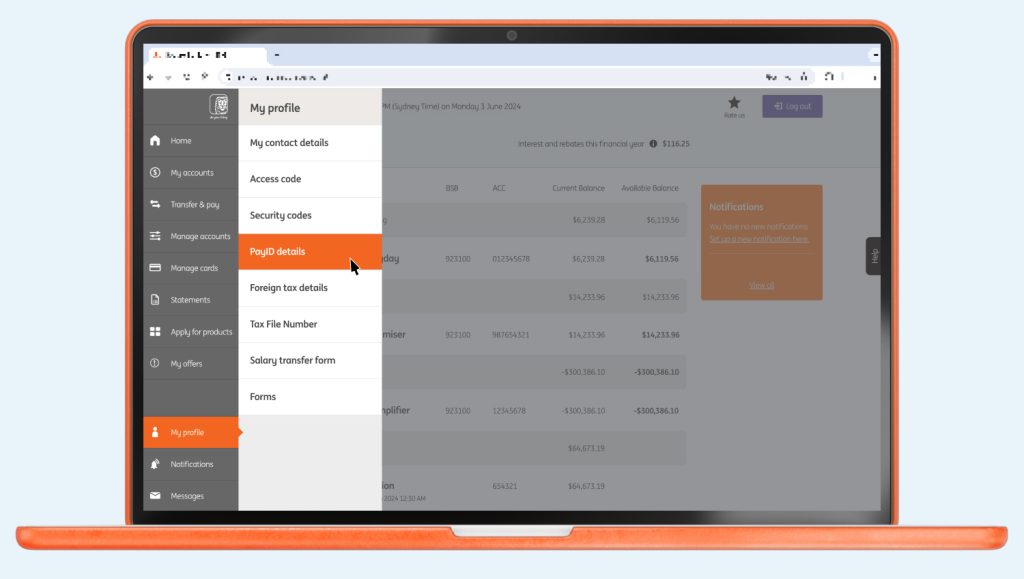
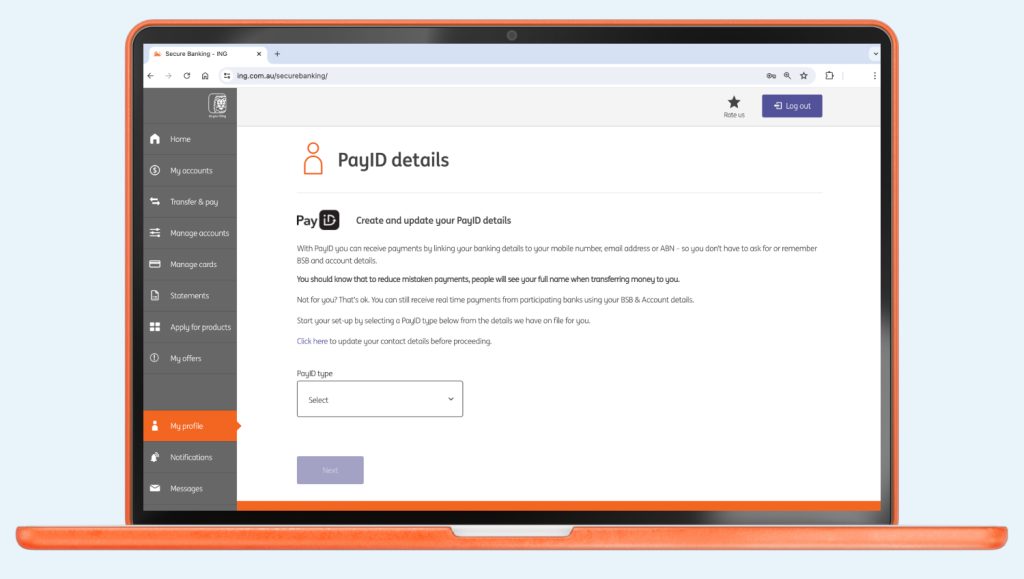
 > PayID
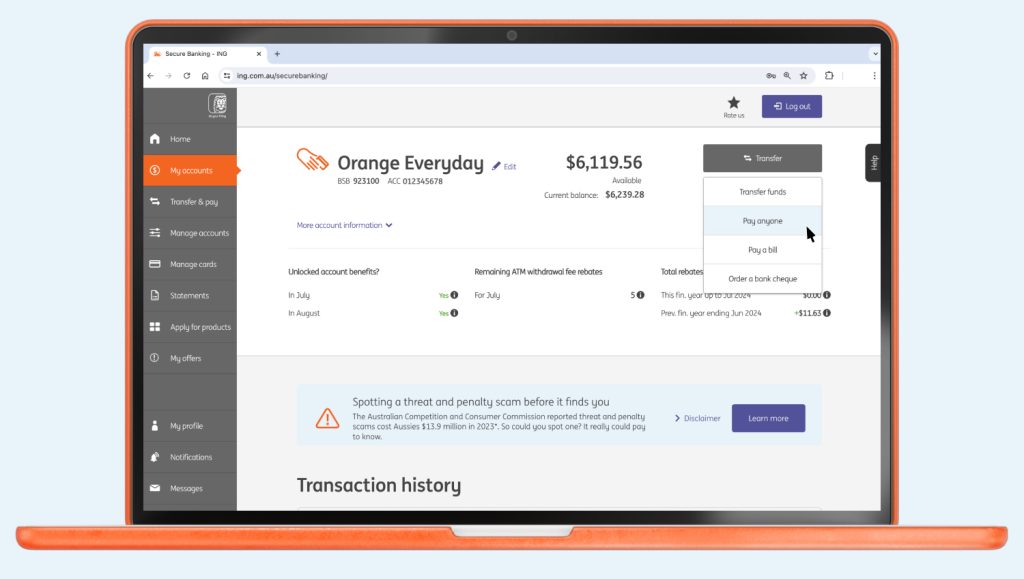
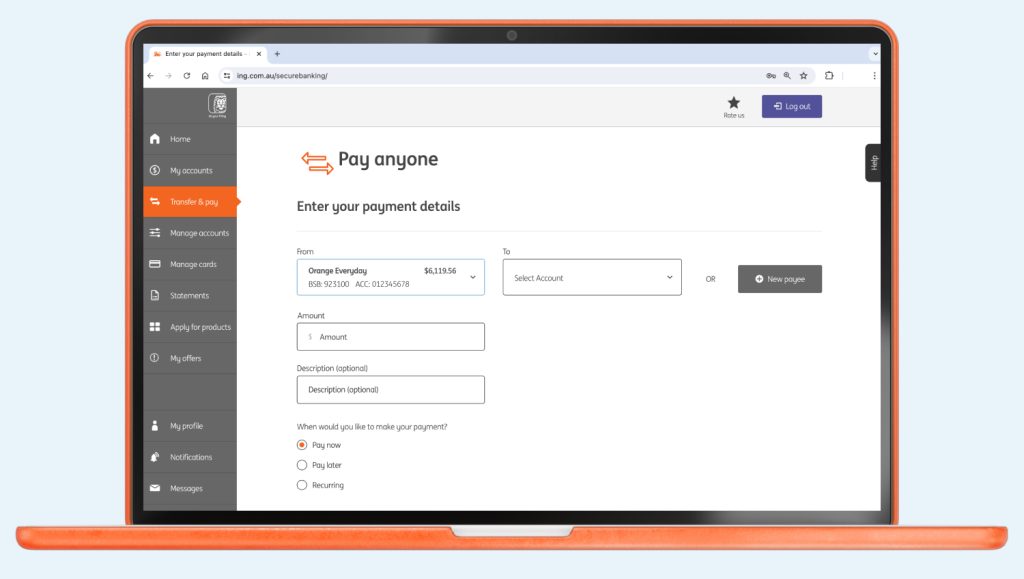
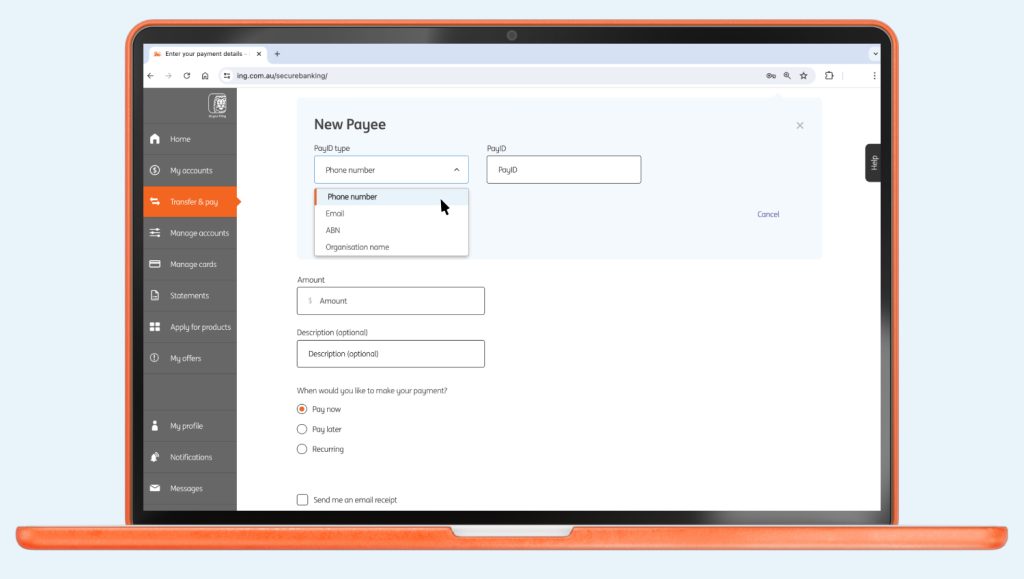
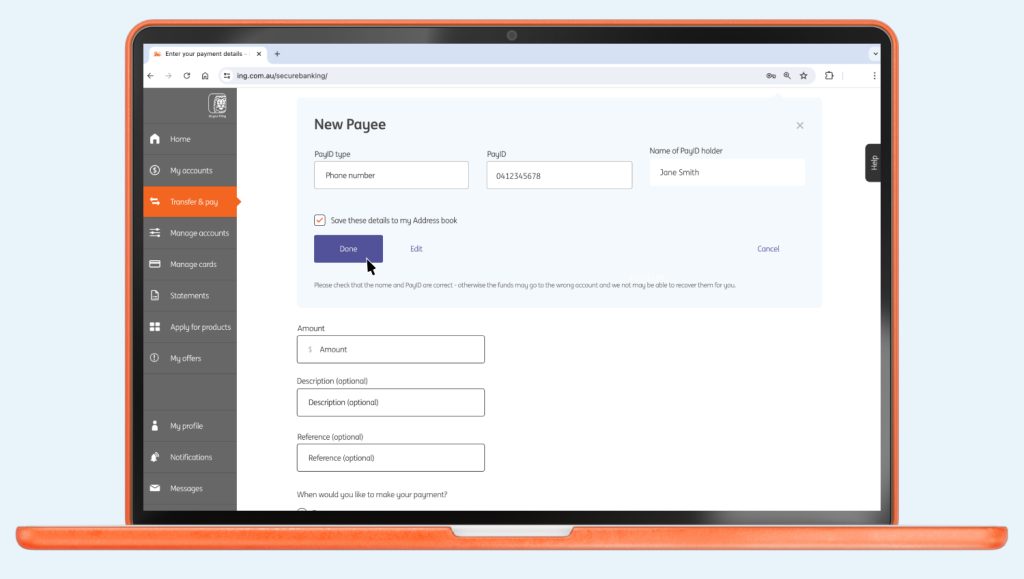

If the payee name doesn’t match who you’re trying to pay, it could be fishy. Before you pay, give them a call on a trusted number to double-check the payment details.
PayID® is a registered trademark of NPP Australia Limited.
ING customers can set up a PayID (like a mobile number or email address) on the following accounts – Orange Everyday, Savings Maximiser, Savings Accelerator, Business Optimiser, Orange Advantage and Mortgage Simplifier.
Your ING card is only valid during the period stated on the card and ...
Payment Limit Debit Card Purchase Limit (Including Apple Pay) $50,000 per day per account ...
Easy. And fast! Some organisations will let you to do this online, over the phone or by completing a form.
Keen to understand a little more about our policy? Head here. It will ...
If you havent been locked out, you can reset your access code using the ING app or online banking.

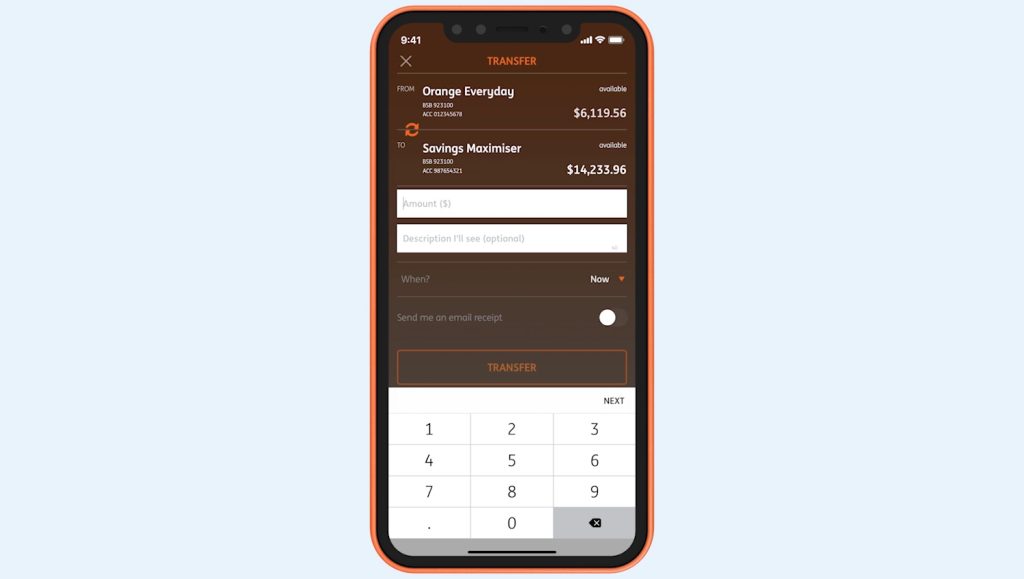
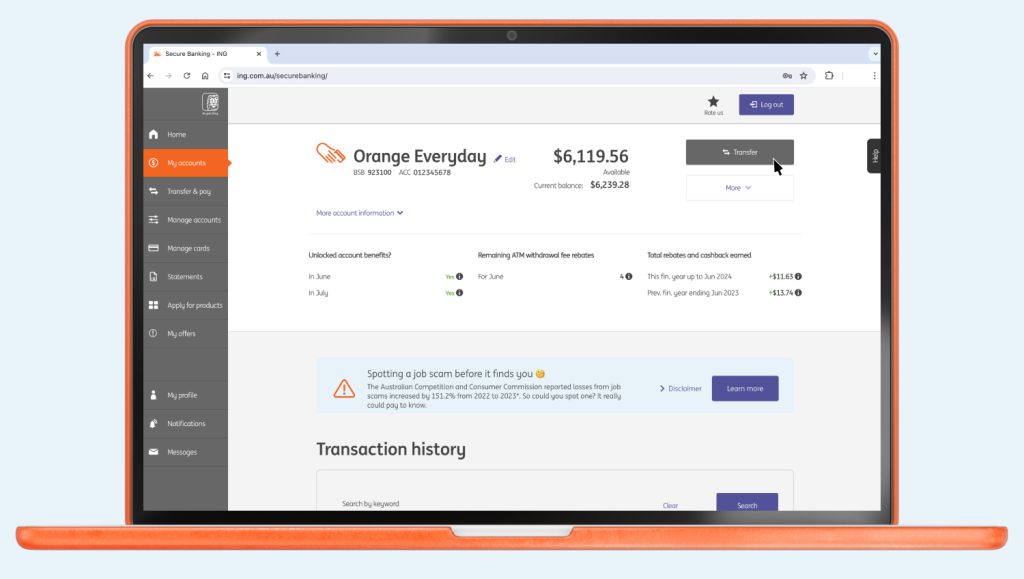
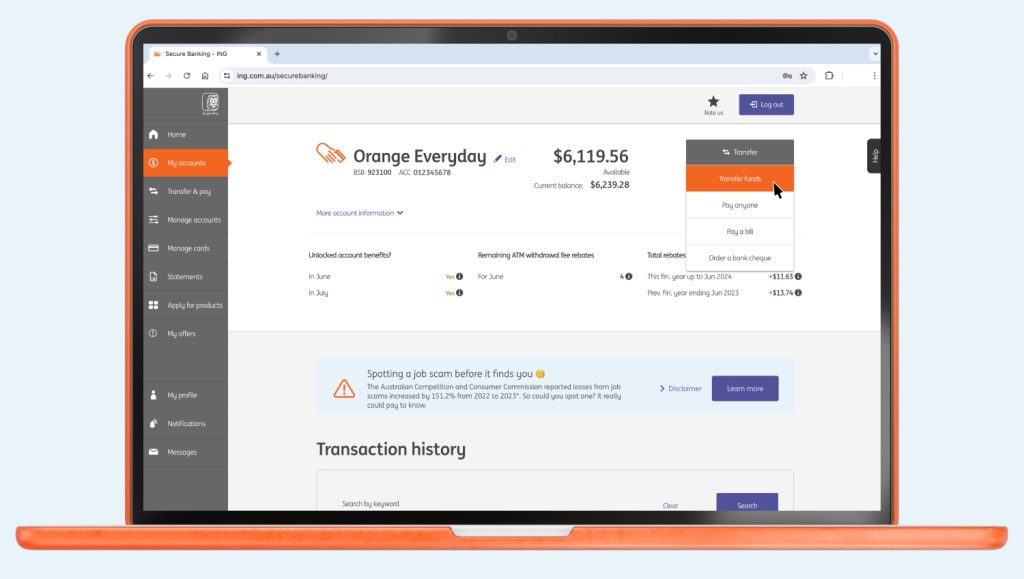
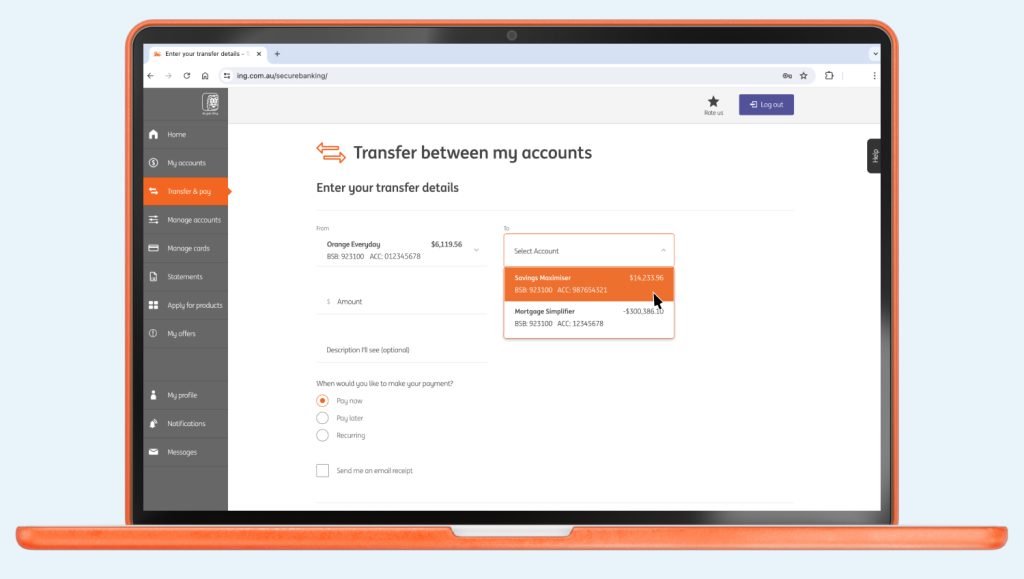
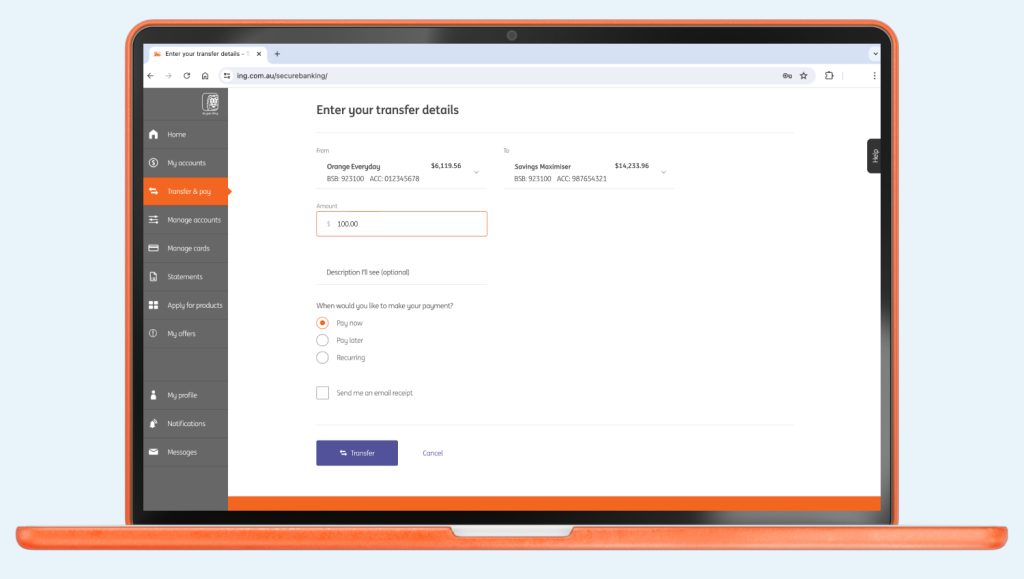
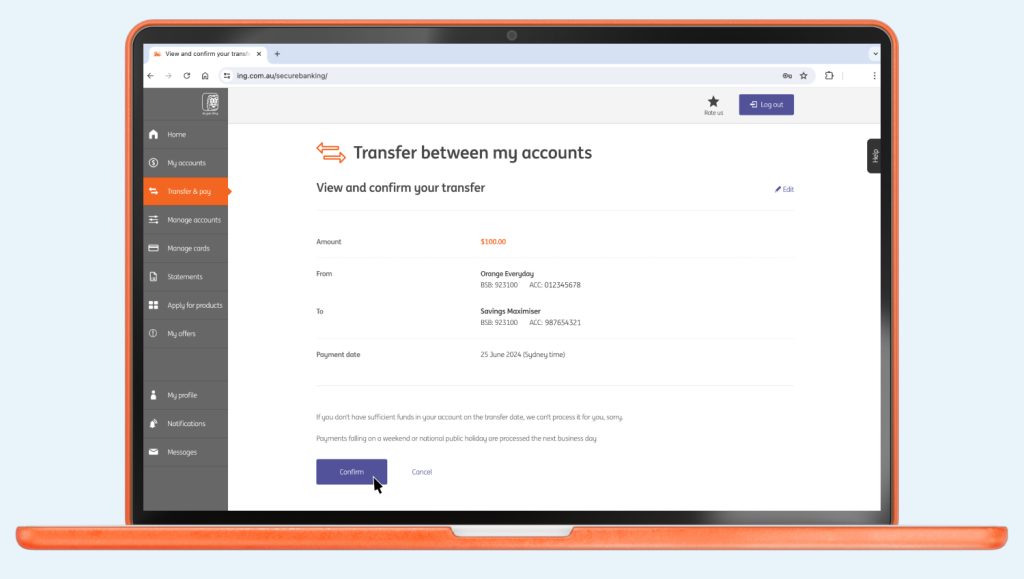
, and select either ‘Bank account’ or ‘PayID’, then enter the details of the account you wish to transfer to.
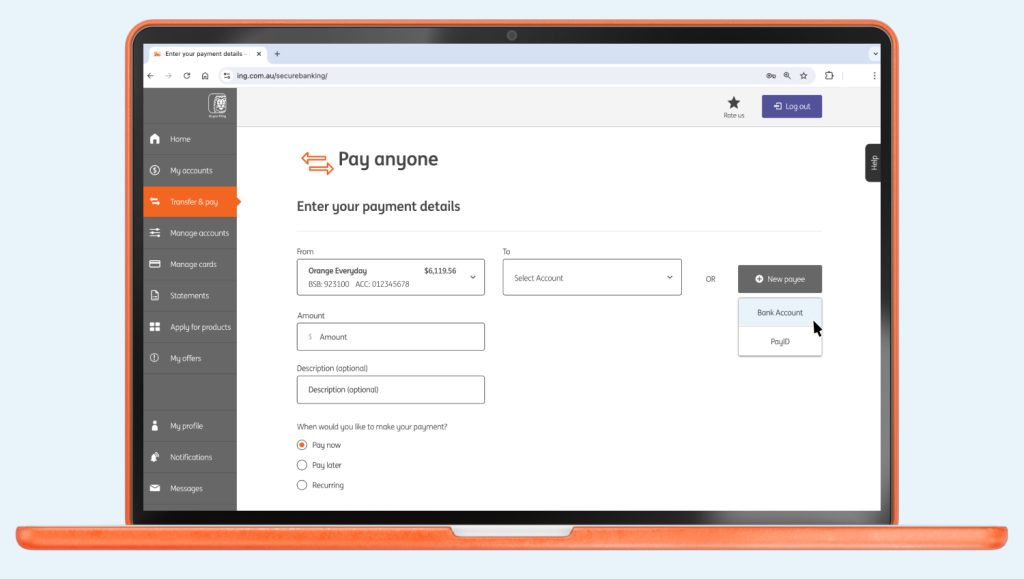
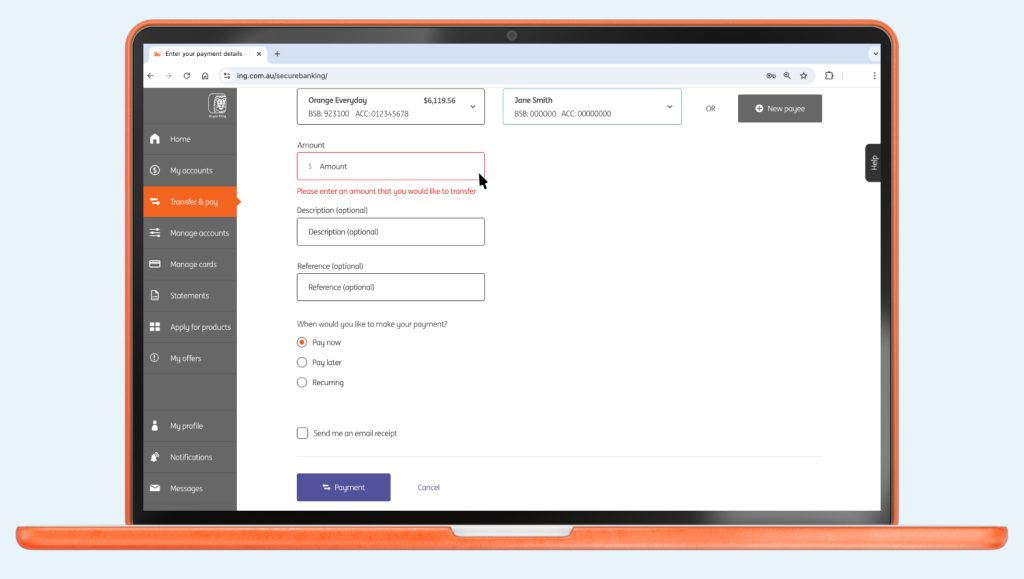
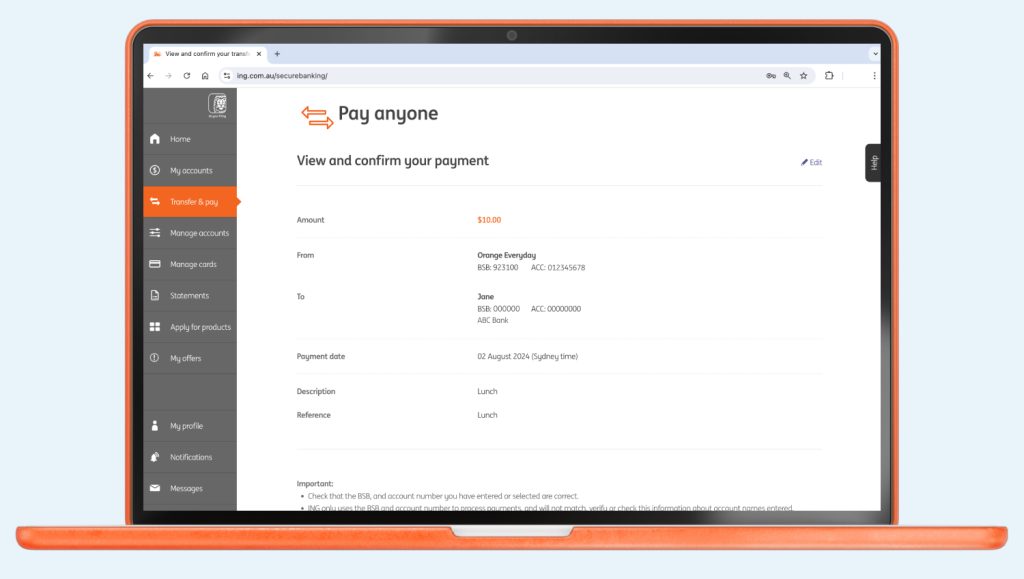
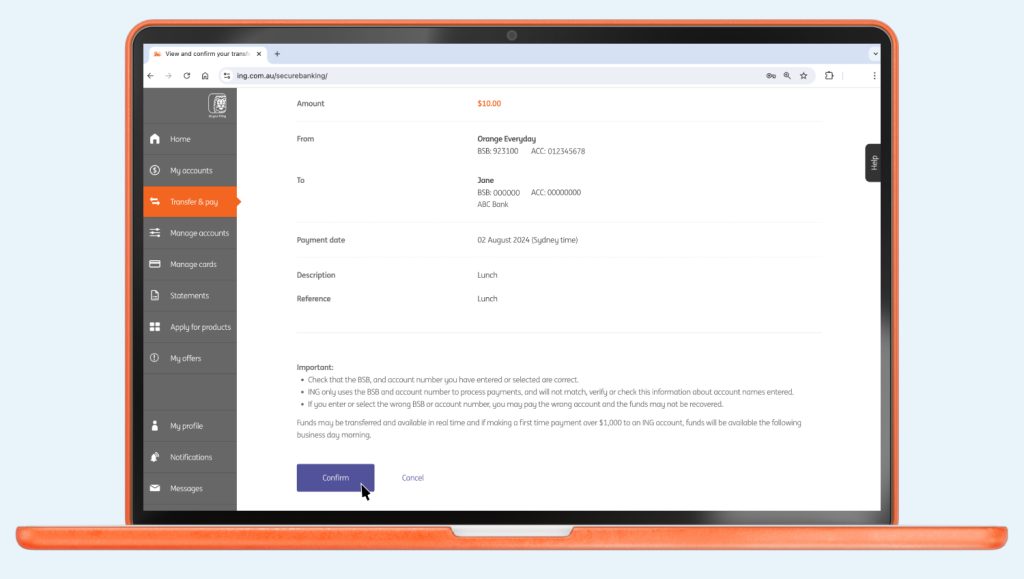
Tip: For people you pay regularly, add their account details to your Address Book to make the process even quicker next time.
You are unable to move funds internationally directly from your ING accounts. If you wish to transfer money internationally, you will need to use a third-party service.
PayID® is a registered trademark of NPP Australia Limited.
Orange Everyday Apple Pay ING App You can also add your card from the ...
In most situations, accounts can be closed quickly using online banking or with the ING app.
You can change it up or down - fast - either on the go using the ING app or from your desktop with online banking.
Keen to understand a little more about our policy? Head here. It will ...
1. Set it up ING Everyday Round Up requires an Orange Everyday account for ...

How do I find out the expiry date of my Fixed Rate Home Loan? ...

Yes, you can use your Orange Everyday or Orange One card anywhere worldwide where Visa is accepted.
Orange One Platinum card holders can also get complimentary travel insurance. Refer to travel insurance terms & conditions.
Letting us know about your international travel helps us monitor your card for suspicious activity and may help prevent any unnecessary blocks on overseas transactions.
You can do this in the ING App:
Note: The travel alert is active for a maximum of 30 days from the day you submit it (not the departure date). It’s a good idea to set this up just before you leave if you’re going for an extended stay. If you’re still overseas 30 days from submitting a travel alert, remember to submit a new one in the ING App to cover the next 30 days.
For full terms and conditions, see the Orange Everyday Terms and Conditions, the Everyday Banking Fees and Limits Schedule, Orange Everyday Benefits Schedule and the agreed utility supplier list.
Subject to the Orange Everyday Terms and Conditions, we may change or cancel Orange Everyday Benefits at any time at our discretion.
Complimentary international travel insurance
AWP Australia Pty Ltd ABN 52 097 227 177 AFSL 245631, trading as Allianz Global Assistance (AGA), under a binder from the insurer, Allianz Australia Insurance Limited ABN 15 000 122 850 AFSL 234708 (Allianz), has issued an insurance group policy to ING Bank (Australia) Limited ABN 24 000 893 292 AFSL and Australian credit licence 229823 (ING) which allows eligible persons to claim under it as third party beneficiaries. Access to the benefit of cover under the ING card insurances is available to eligible ING cardholders and other eligible third party beneficiaries by operation of s48 of the Insurance Contracts Act 1984 (Cth). Terms, conditions, limits and exclusions apply. Any advice on insurance is general advice only and not based on any consideration of your objectives, financial situation or needs. You must check whether or not it is appropriate, in light of your own circumstances, to act on this advice. ING does not guarantee this insurance.
All applications are subject to ING’s eligibility and credit assessment criteria. Fees, charges and eligibility apply. See the product terms and conditions at ing.com.au.
Orange Everyday utility bill offer
1% cashback on eligible utility bill payments, up to $100 per Orange Everyday, per financial year. An eligible utility bill payment is a payment made by BPAY, direct debit (BSB and account number), or PayTo from your Orange Everyday account for a water, gas or electricity bill from an agreed supplier for the Australian residential address of the account holder.
For full terms and conditions, see the Orange Everyday Terms and Conditions, the Everyday Banking Fees and Limits Schedule, Orange Everyday Benefits Schedule and the agreed utility supplier list and ing.com.au
Subject to these terms and conditions, ING may change or cancel these benefits at any time.

What are notifications? Notifications help you stay across activity on your accounts. You can ...
No signature required There’s no need to sign your new Orange Everyday card. Which ...
Downloading the new ING App iOS Instructions Android Instructions 1. Client number Once you ...
Keen to understand a little more about our policy? Head here. It will ...
Identify card transactions with ease Ever looked at your transactions and seen a charge ...
1. Set it up ING Everyday Round Up requires an Orange Everyday account for ...

Jump to a section
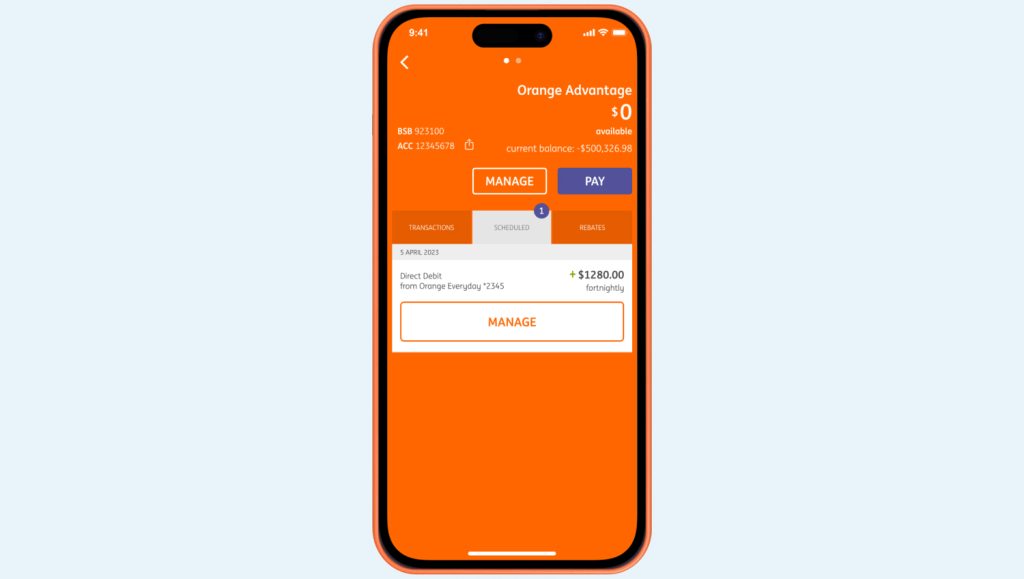
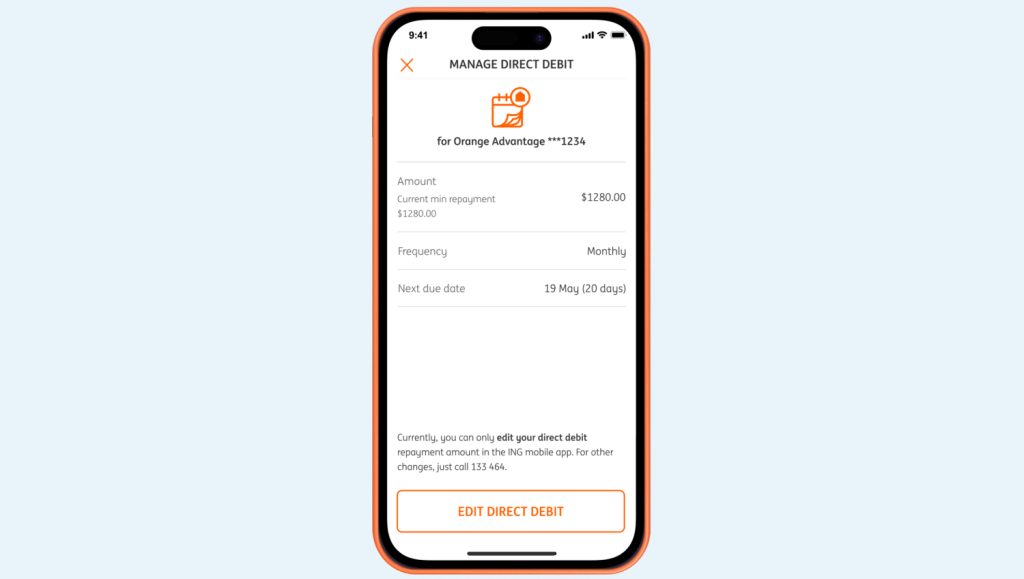
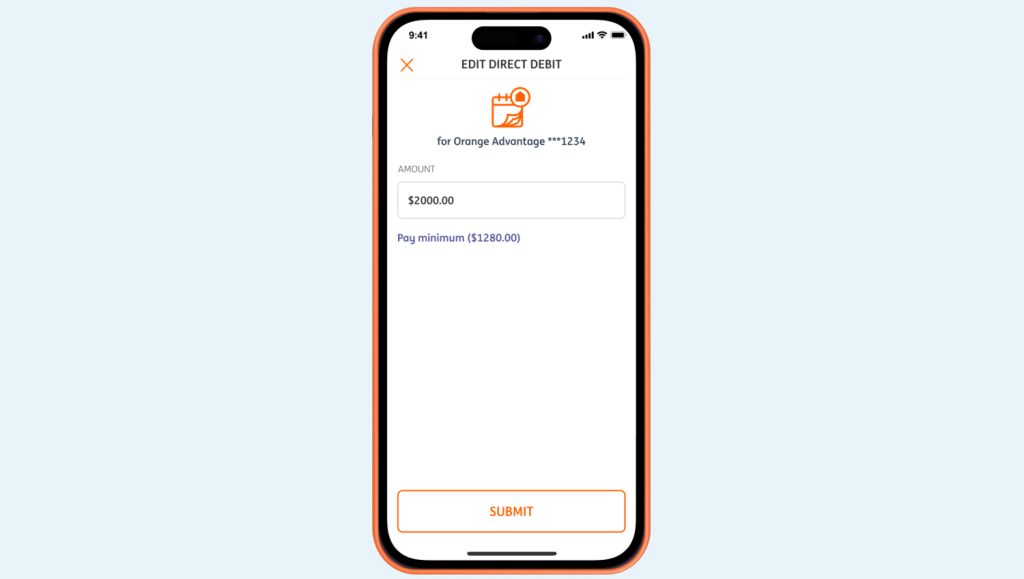
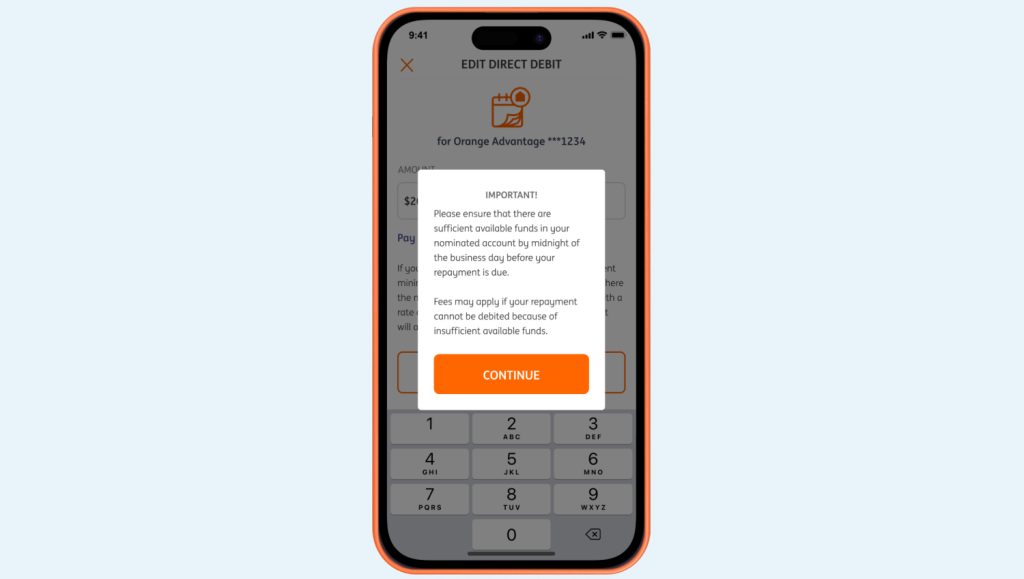
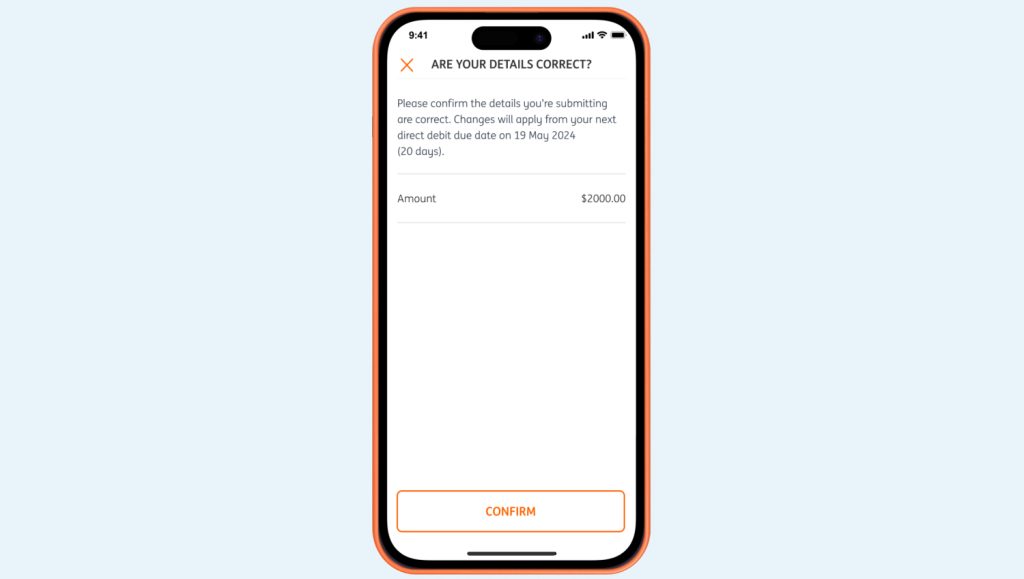
Note: your new amount must be higher than your minimum repayment amount.
Don’t remember your Access Code? You can reset it online at the login stage of Online Banking or, if you already have the app, on your phone.
If you don’t have the ING App or access to Online Banking, you can get assistance with this requirement over the phone.
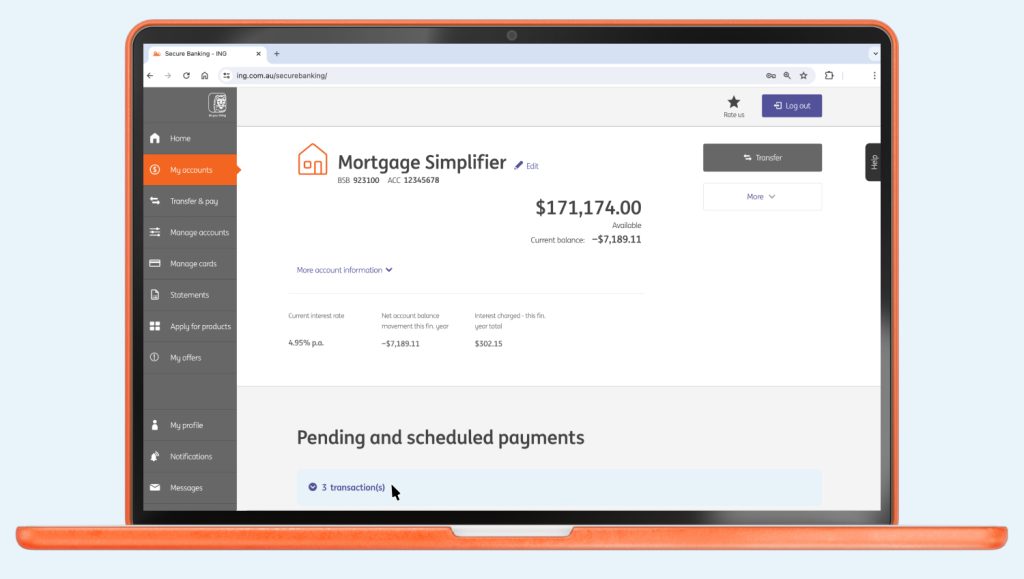
Note: your new amount must be higher than your minimum repayment amount.
| Repayment type | Frequency |
|---|---|
| Principal and interest home loan repayments | Fortnightly or monthly |
| Interest only home loan repayments | Monthly only |
| Additional home loan repayments | Anytime |
Orange Everyday Apple Pay ING App You can also add your card from the ...
No signature required There’s no need to sign your new Orange Everyday card. Which ...
In most situations, accounts can be closed quickly using online banking or with the ING app.
1. Set it up ING Everyday Round Up requires an Orange Everyday account for ...
What are notifications? Notifications help you stay across activity on your accounts. You can ...
Transferring money between your ING accounts Transferring money from ING to another financial institution ...